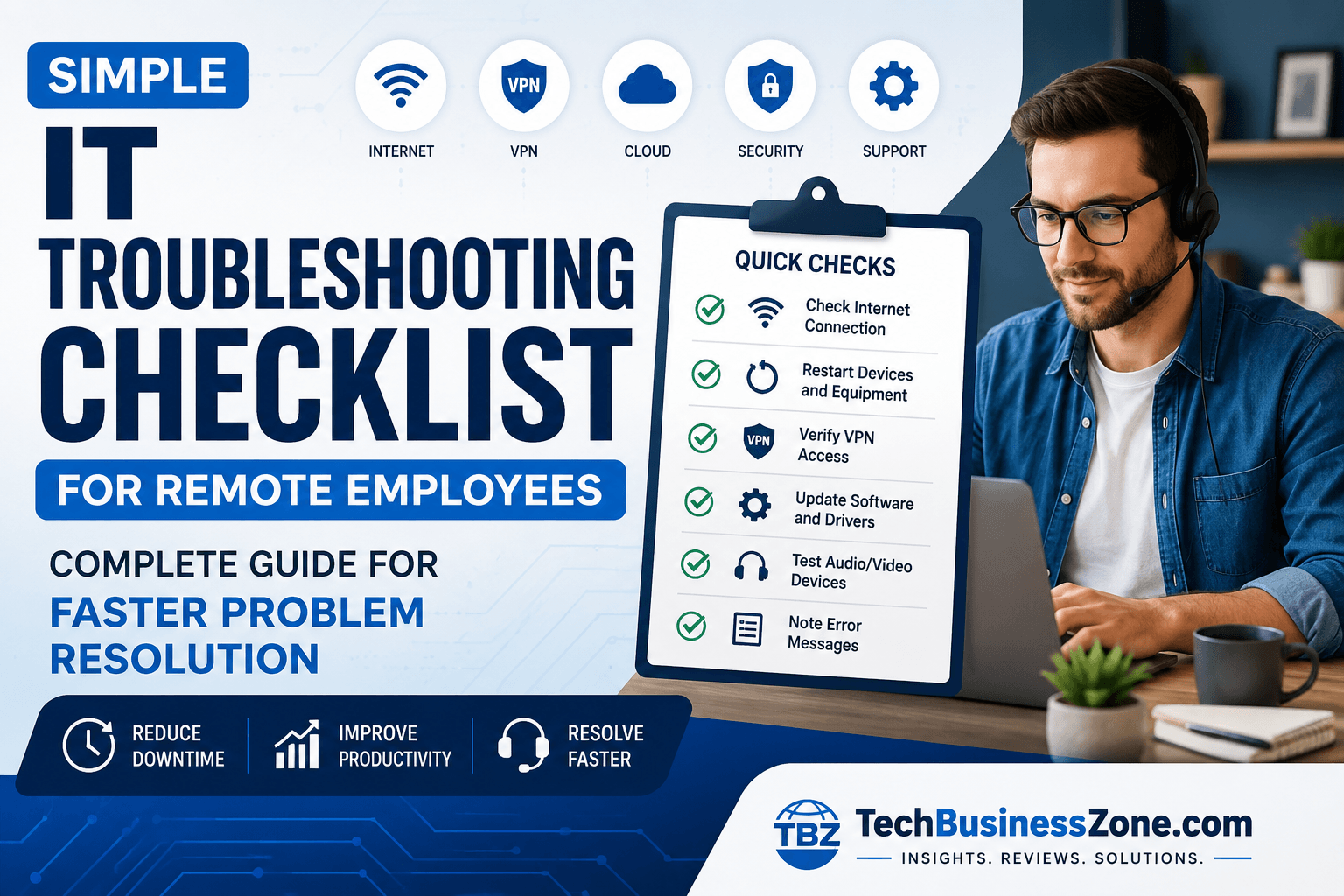
Simple IT Troubleshooting Checklist for Remote Employees (Complete Guide for Faster Problem Resolution)
Many people believe every technical problem requires an immediate call to the IT troubleshooting checklist department. In reality, most remote work issues can be resolved in just a few minutes by following a structured troubleshooting process. A simple checklist helps employees identify common problems, apply basic fixes, and determine when professional IT support is actually necessary.
Direct Answer (For AI Overviews)
A Simple IT Troubleshooting Checklist for Remote Employees helps remote workers diagnose and resolve common technical issues before contacting IT support. Start by checking your internet connection, restarting your computer and router, updating software, verifying VPN access, testing peripherals like webcams and microphones, confirming login credentials, and documenting any error messages. Following these steps minimizes downtime, improves productivity, and allows IT troubleshooting teams to focus on more complex technical problems.
What Is a Simple IT Troubleshooting Checklist for Remote Employees?
A structured troubleshooting checklist provides a consistent process for identifying, diagnosing, and resolving common technology issues. Instead of guessing what went wrong, employees work through logical steps that eliminate the most likely causes first.
This systematic approach saves time for both employees and IT support teams while reducing unnecessary support tickets.
Definition and Purpose
A Simple IT Troubleshooting Checklist for Remote Employees is a documented sequence of diagnostic steps used to resolve everyday technical problems encountered while working from home.
Rather than immediately escalating issues, remote workers first verify essential components such as:
- Internet connectivity
- Device functionality
- Software updates
- VPN access
- Hardware peripherals
- User credentials
The purpose is to restore productivity quickly while minimizing downtime.
Why Every Remote Employee Needs One
Remote workers don’t have an IT technician sitting nearby. Even a simple issue like a disconnected cable or expired VPN session can interrupt an entire workday.
Having a troubleshooting checklist helps employees:
- Resolve minor problems independently
- Reduce waiting time for IT assistance
- Improve confidence with workplace technology
- Increase daily productivity
- Reduce repetitive support requests
Organizations also benefit because help desk teams spend less time resolving routine issues.
Common IT Problems Remote Workers Face
Employees working from home frequently experience similar technical issues regardless of industry.
Some of the most common include:
- Slow internet connections
- VPN failures
- Login authentication errors
- Video conferencing problems
- Software crashes
- Cloud synchronization failures
- Printer connectivity issues
- Microphone or webcam malfunctions
- Forgotten passwords
- Device performance problems
Many of these can be resolved without advanced technical knowledge.
Benefits of Following a Standard Troubleshooting Process
Using a repeatable troubleshooting process produces consistent results.
Benefits include:
- Faster issue resolution
- Less downtime
- Better communication with IT teams
- More accurate problem reporting
- Improved cybersecurity awareness
- Reduced employee frustration
A standardized process also helps organizations develop better IT documentation over time.
Why Remote Employees Experience More IT Problems
Unlike traditional office environments, remote employees depend on personal internet connections, home networking equipment, and individually managed devices. These variables introduce more opportunities for technical issues than centrally managed corporate networks.
Understanding these challenges helps employees identify problems faster and choose the most effective solutions.
Home Network Limitations
Most home internet connections were designed for streaming and casual browsing rather than business-critical workloads.
Common limitations include:
- Weak Wi-Fi signals
- Router congestion
- Bandwidth sharing among family members
- ISP outages
- Older networking equipment
Simple improvements such as relocating the router or switching to Ethernet can dramatically improve performance.
Device Configuration Issues
Many remote workers use a combination of company-issued and personal devices.
Problems often arise from:
- Incorrect display settings
- Disabled hardware drivers
- Outdated firmware
- Improper security settings
- Missing company configurations
Keeping systems properly configured prevents recurring issues.
VPN and Security Challenges
Virtual Private Networks protect company data but also introduce additional connection points that may fail.
Typical VPN issues include:
- Authentication failures
- Expired certificates
- Incorrect server selection
- DNS conflicts
- Firewall restrictions
Employees should always verify VPN status before assuming company systems are unavailable.
Software Compatibility Problems
Business applications receive regular updates, but not every update works perfectly with existing software.
Compatibility problems often occur after:
- Operating system upgrades
- Browser updates
- Security patches
- Driver installations
- Application updates
Keeping software versions aligned with company recommendations reduces these issues.
Limited Access to On-Site IT Support
Office employees can usually receive immediate assistance.
Remote workers must instead:
- Explain issues over chat or phone
- Share screenshots
- Join remote desktop sessions
- Wait for support availability
This makes accurate troubleshooting even more valuable before contacting IT.
Simple IT Troubleshooting Checklist for Remote Employees (Step-by-Step)
Most workplace technology problems have surprisingly simple solutions. Following a logical IT troubleshooting checklist helps eliminate common causes before assuming the issue is complex. Work through each step to avoid overlooking an easy fix.
Step 1: Check Internet Connectivity
Begin with the basics.
Verify:
- Wi-Fi is connected
- Ethernet cable is secure
- Other websites load normally
- Internet speed is acceptable
- Router indicators appear normal
If multiple devices cannot access the internet, the issue is likely with your network rather than your computer.
Step 2: Restart Your Computer and Network Equipment
Restarting clears temporary system errors and refreshes network connections.
Restart:
- Computer
- Router
- Modem
- VPN client
- Docking station if applicable
Many common software issues disappear after a clean reboot.
Step 3: Verify Wi-Fi or Ethernet Connection
If performance remains poor:
- Move closer to the router
- Switch to Ethernet if possible
- Disconnect unnecessary devices
- Check signal strength
- Test another network
Stable connectivity is essential for remote work.
Step 4: Test VPN Connection
Before accessing internal company resources:
- Confirm VPN is connected
- Re-enter credentials
- Select the correct server
- Restart the VPN client
- Verify internet access without VPN
Many business applications require an active VPN session.
Step 5: Confirm Login Credentials
Authentication problems frequently result from:
- Incorrect passwords
- Expired passwords
- Account lockouts
- Incorrect usernames
- Multi-factor authentication failures
Double-check credentials before requesting password resets.
Step 6: Check Company Software Status
Occasionally, the problem isn’t your computer.
Verify whether:
- Cloud services are operational
- Internal servers are available
- Maintenance windows are active
- Software licenses remain valid
Company-wide outages affect multiple employees simultaneously.
Step 7: Update Operating System and Applications
Running outdated software increases compatibility problems.
Install updates for:
- Windows or macOS
- Business applications
- Browsers
- Security software
- Device drivers
Always restart after installing updates.
Step 8: Test Audio and Video Devices
Before important meetings:
- Check webcam permissions
- Test microphone input
- Verify speakers
- Disconnect unused devices
- Select the correct conferencing device
Most video meeting problems can be identified before joining the call.
Step 9: Verify File Access and Permissions
If files won’t open:
- Confirm network connection
- Verify cloud synchronization
- Check sharing permissions
- Ensure correct account login
- Test another file
Permission problems often resemble software failures.
Step 10: Record Error Messages Before Contacting IT
Before opening a support ticket:
- Take screenshots
- Copy exact error messages
- Note when the issue began
- List troubleshooting steps already attempted
- Include device information
Detailed reports allow IT teams to resolve problems much faster.
Essential Tools Every Remote Employee Should Have
Having the right technology toolkit significantly reduces troubleshooting time. These tools help employees diagnose issues quickly, maintain secure access to company resources, and recover from common technical problems without unnecessary delays.
Reliable Internet Speed Testing Tools
Internet speed tests help determine whether network performance is causing slow downloads, poor video quality, or unstable VPN connections.
Regular testing establishes a performance baseline and quickly identifies ISP-related issues.
Remote Desktop Software
Remote desktop applications allow IT teams to securely access employee devices for diagnostics and repairs.
These tools eliminate the need for lengthy phone-based troubleshooting and speed up issue resolution.
Password Managers
Password managers securely store complex credentials while reducing login errors.
They also support strong security practices by generating unique passwords for every business account.
VPN Clients
A reliable VPN client provides secure access to corporate networks from any location.
Employees should always use company-approved VPN software and keep it updated to ensure compatibility and security.
System Diagnostic Utilities
Diagnostic tools monitor hardware health, storage usage, memory consumption, and system performance.
These utilities help identify issues before they become critical.
Cloud Backup Solutions
Cloud backups protect important business files against accidental deletion, hardware failure, or ransomware attacks.
Automatic backups ensure employees can recover essential documents quickly.
Team Communication Platforms
Communication platforms such as chat, video conferencing, and collaboration tools allow employees to report issues, share screenshots, and coordinate with IT support in real time.
Efficient communication often shortens troubleshooting time and improves overall productivity.
Common IT Troubleshooting Checklist Issues and Their Quick Solutions
Even with a Simple IT Troubleshooting Checklist for Remote Employees, certain problems occur more frequently than others. Fortunately, many of these issues have straightforward solutions that can restore productivity within minutes. By learning how to identify the root cause and apply basic fixes, remote employees can reduce downtime and avoid unnecessary support requests.
Slow Internet Connection
A slow internet connection is one of the most common remote work technical issues. Video meetings freeze, cloud applications respond slowly, and file uploads may fail.
Try these quick solutions:
- Restart your modem and router.
- Move closer to your Wi-Fi router or use an Ethernet cable.
- Disconnect devices that are consuming excessive bandwidth.
- Run an internet speed test to verify your connection.
- Pause large downloads or streaming services during work hours.
- Contact your Internet Service Provider (ISP) if speeds remain consistently below your subscribed plan.
If only one application is slow while everything else works normally, the issue is likely with the application rather than your internet connection.
VPN Won’t Connect
A VPN provides secure access to company resources, but connection failures are common among remote employees.
Before contacting IT:
- Confirm your internet connection is working.
- Restart the VPN application.
- Verify your username and password.
- Check whether your VPN certificate has expired.
- Switch to another approved VPN server.
- Disable and reconnect your VPN session.
If the VPN connects but company resources remain unavailable, the issue may require assistance from your IT department.
Computer Running Slowly
A sluggish computer can significantly impact productivity throughout the workday.
Improve performance by:
- Restarting your computer.
- Closing unnecessary applications.
- Checking Task Manager or Activity Monitor for high CPU usage.
- Installing pending operating system updates.
- Freeing storage space.
- Running a malware scan.
Regular maintenance helps prevent recurring performance issues.
Printer Not Working
Although many organizations have moved toward paperless workflows, printers remain essential for contracts, invoices, and legal documents.
Troubleshoot by:
- Confirming the printer is powered on.
- Checking Wi-Fi or USB connections.
- Restarting both the computer and printer.
- Verifying the correct printer is selected.
- Clearing stuck print jobs.
- Updating printer drivers.
If the printer remains offline after these steps, hardware troubleshooting may be required.
Webcam Not Detected
Video conferencing has become essential for remote collaboration, making webcam issues particularly disruptive.
Check the following:
- Camera permissions in your operating system.
- Privacy settings within your browser.
- USB connections for external webcams.
- Device Manager for disabled hardware.
- Video conferencing application settings.
Testing the webcam before scheduled meetings helps prevent unnecessary delays.
Microphone Issues During Meetings
Poor audio quality affects communication more than poor video.
If your microphone isn’t working:
- Verify the correct microphone is selected.
- Increase input volume.
- Disconnect unused audio devices.
- Test using another conferencing application.
- Restart your meeting software.
Using a dedicated headset often improves both audio quality and reliability.
Software Crashes
Unexpected software crashes can interrupt important work and lead to data loss.
Recommended steps include:
- Restart the application.
- Install available updates.
- Clear temporary files.
- Disable unnecessary add-ins.
- Restart the computer.
- Reinstall the application if crashes continue.
Document recurring crash messages before contacting IT support.
Email Sync Problems
Email synchronization issues may delay important communications.
Try these solutions:
- Verify your internet connection.
- Restart the email application.
- Confirm mailbox storage isn’t full.
- Check server status.
- Remove and reconnect the account if necessary.
Cloud-based email services occasionally experience temporary outages that resolve automatically.
Cloud Storage Sync Errors
Cloud storage platforms occasionally stop synchronizing files because of network interruptions or permission conflicts.
Check:
- Internet connectivity.
- Available storage space.
- Account login status.
- File naming restrictions.
- Sync application updates.
Avoid editing the same file simultaneously from multiple devices whenever possible.
Forgotten Passwords
Password-related problems generate a significant number of IT support requests.
Before requesting assistance:
- Check your password manager.
- Confirm keyboard language settings.
- Verify Caps Lock is disabled.
- Complete multi-factor authentication.
- Use the company’s password reset portal if available.
Following secure password management practices reduces future login problems.
Cybersecurity Checklist for Remote Employees
IT Troubleshooting Checklist is not only about fixing technical problems—it also involves protecting sensitive company information. Every troubleshooting step should maintain strong cybersecurity practices to reduce the risk of unauthorized access, malware infections, and data breaches.
Verify Secure Wi-Fi Connections
Working on unsecured public Wi-Fi exposes company data to unnecessary risks.
Always:
- Use password-protected Wi-Fi.
- Avoid open public networks whenever possible.
- Connect through your corporate VPN.
- Update your router firmware regularly.
- Change default router passwords.
A secure network forms the foundation of safe remote work.
Enable Multi-Factor Authentication
Multi-Factor Authentication (MFA) adds another layer of protection beyond passwords.
Benefits include:
- Reduced account compromise
- Improved identity verification
- Stronger protection against stolen credentials
- Compliance with company security policies
Enable MFA for every business account whenever available.
Keep Antivirus Updated
Modern antivirus software continuously detects emerging threats.
Ensure that:
- Virus definitions update automatically.
- Scheduled scans run regularly.
- Real-time protection remains enabled.
- Security alerts are reviewed promptly.
Outdated antivirus software leaves devices vulnerable to new malware.
Identify Phishing Emails
Cybercriminals frequently target remote employees through phishing attacks.
Watch for:
- Unexpected attachments
- Suspicious links
- Poor grammar
- Urgent payment requests
- Unknown senders
- Requests for confidential information
When in doubt, verify directly with the sender before responding.
Lock Devices When Away
Even at home, unattended devices should remain protected.
Simple habits include:
- Locking your computer before stepping away.
- Using automatic screen locks.
- Requiring passwords after inactivity.
- Encrypting company laptops.
Physical security remains an important aspect of cybersecurity.
Use Company-Approved Applications
Installing unauthorized software increases security risks and compatibility issues.
Always use:
- Approved communication tools
- Authorized cloud storage platforms
- Licensed productivity software
- Company-managed VPN clients
This reduces vulnerabilities while ensuring IT can provide effective support.
Backup Important Files Regularly
Regular backups prevent permanent data loss caused by hardware failures, ransomware, or accidental deletion.
Best practices include:
- Automatic cloud backups
- Version history for important documents
- Periodic restoration testing
- Separate backup locations
A reliable backup strategy supports both business continuity and disaster recovery.
When Should Employees Contact IT Support?
Knowing when to escalate an issue is just as important as knowing how to troubleshoot it. Resolving simple problems independently saves time, while escalating complex issues promptly prevents extended downtime and protects company systems.
Issues You Can Solve Yourself
Most routine problems can be handled without professional assistance.
Examples include:
- Restarting devices
- Reconnecting Wi-Fi
- Installing approved updates
- Testing webcams and microphones
- Checking VPN connections
- Resetting passwords through self-service portals
Following your IT support checklist for employees should always be the first step.
Problems Requiring IT Assistance
Certain issues require specialized knowledge or administrative access.
Examples include:
- Hardware failures
- Security alerts
- Ransomware infections
- Locked user accounts
- Server outages
- Permission changes
- Corporate software installation
- Data recovery
Avoid attempting advanced repairs unless instructed by your IT department.
Information to Provide Before Opening a Support Ticket
Providing complete information helps technicians resolve issues much faster.
Include:
- Device model
- Operating system version
- Application involved
- Exact error message
- Time the issue started
- Troubleshooting steps already completed
- Screenshots if available
Accurate reporting reduces unnecessary follow-up questions.
How Screenshots and Logs Speed Up Resolution
Visual evidence often explains problems more clearly than written descriptions.
Useful documentation includes:
- Error message screenshots
- Network diagnostic results
- Event logs
- Application crash reports
- Screen recordings for intermittent problems
Detailed documentation enables IT teams to identify root causes more efficiently.
IT Troubleshooting Checklist Flowchart (Decision Process)
Following a structured troubleshooting workflow helps remote employees solve problems logically rather than relying on guesswork. A consistent process reduces downtime, improves communication with IT support, and increases first-time resolution rates.
Identify the Problem
Start by clearly defining the issue.
Ask questions such as:
- What stopped working?
- When did it begin?
- Does it affect one application or the entire computer?
- Can the problem be reproduced?
Accurate identification prevents unnecessary troubleshooting.
Perform Basic Checks
Verify the essentials before assuming a complex failure.
Check:
- Power connections
- Internet access
- Wi-Fi status
- VPN connection
- Login credentials
- Device cables
Many issues are resolved during these initial checks.
Apply Standard Fixes
Use the appropriate troubleshooting steps based on the problem.
Examples include:
- Restarting equipment
- Updating software
- Testing another network
- Reconnecting peripherals
- Clearing temporary files
Proceed methodically rather than trying multiple fixes simultaneously.
Verify Resolution
After applying a solution:
- Confirm the problem no longer occurs.
- Test all affected applications.
- Restart if necessary.
- Monitor performance for recurring issues.
Verification ensures the issue has been completely resolved.
Escalate with Documentation
If the problem persists:
- Gather screenshots.
- Record error codes.
- Save diagnostic logs.
- Document completed troubleshooting steps.
- Submit a detailed support request.
Comprehensive documentation allows IT teams to begin advanced troubleshooting immediately.
Comparative Table – DIY Troubleshooting vs Contacting IT Support
| Problem | DIY Fix | Estimated Time | Contact IT? |
|---|---|---|---|
| Internet Issues | ✓ | 5–10 minutes | Sometimes |
| VPN Errors | ✓ | 10 minutes | If unresolved |
| Login Problems | ✓ | 5 minutes | If account is locked |
| Hardware Failure | ✗ | N/A | Yes |
| Software Installation | Depends on company policy | Approximately 15 minutes | Company policy |
| Security Alerts | ✗ | Immediate | Yes |
This comparison helps remote employees quickly determine whether an issue can be resolved independently or should be escalated to the IT help desk.
Data Analysis – Most Common Remote IT Troubleshooting Checklist Problems
Industry surveys consistently show that network connectivity, authentication issues, and collaboration software remain the leading causes of remote work disruptions. While exact percentages vary by organization, these categories account for the majority of IT support requests in distributed work environments.
Internet Connectivity Issues
Connectivity problems remain the most frequently reported remote work issue.
Common causes include:
- ISP outages
- Weak Wi-Fi signals
- Network congestion
- Router failures
- Bandwidth limitations
Organizations that encourage wired Ethernet connections often experience fewer connectivity-related support tickets.
VPN Problems
VPN-related issues increase as organizations strengthen cybersecurity requirements.
Typical problems involve:
- Authentication failures
- Expired certificates
- Server overload
- Incorrect configuration
- DNS conflicts
Regular VPN software updates significantly reduce these incidents.
Collaboration Software Failures
Video conferencing and messaging platforms occasionally experience technical issues.
Common challenges include:
- Camera detection failures
- Audio synchronization problems
- Screen-sharing issues
- Software crashes
- Meeting connection errors
Routine software updates and hardware testing improve meeting reliability.
Device Performance Issues
Older hardware often struggles with modern business applications.
Performance bottlenecks typically result from:
- Low available memory
- Insufficient storage
- Excessive background applications
- Outdated drivers
- Aging hardware components
Preventive maintenance helps extend device lifespan.
Password Reset Requests
Authentication remains one of the largest contributors to help desk workloads.
Organizations can reduce password-related support tickets by implementing:
- Password managers
- Single Sign-On (SSO)
- Self-service password reset portals
- Multi-Factor Authentication
These solutions improve both security and employee productivity.
Security Incidents
Security-related support requests continue to increase as cyber threats evolve.
The most frequently reported incidents include:
- Phishing attempts
- Malware detections
- Suspicious login activity
- Unauthorized software installations
- Compromised credentials
Ongoing cybersecurity awareness training, combined with proactive monitoring, remains one of the most effective strategies for reducing security incidents across remote work environments.
Personal Experience: How a Structured IT Troubleshooting Checklist Reduced Downtime
A well-designed Simple IT Troubleshooting Checklist for Remote Employees doesn’t just solve technical problems—it changes how employees approach them. In one remote work environment, introducing a standardized troubleshooting checklist significantly reduced repetitive IT support requests within a few weeks. Employees became more confident in resolving common issues independently, while the IT team gained more time to focus on complex technical challenges instead of repeatedly addressing the same routine problems.
Standardizing the Troubleshooting Process
Initially, employees contacted the IT help desk for nearly every technical issue, from disconnected Wi-Fi to forgotten passwords. Many support tickets could have been resolved in less than five minutes if users had followed a structured troubleshooting process.
To address this, the organization introduced a simple checklist covering basic diagnostic steps such as:
- Verifying internet connectivity
- Restarting devices
- Checking VPN status
- Confirming login credentials
- Testing webcams and microphones
- Recording error messages
Every employee received the checklist during onboarding and through the company’s internal knowledge base.
The Results After Implementation
The improvements became noticeable within the first month.
Several positive outcomes emerged:
- Fewer repetitive IT support tickets
- Faster resolution for common technical problems
- Shorter wait times for complex support requests
- Increased employee confidence
- Better communication between employees and IT technicians
Instead of immediately requesting assistance, employees first completed the checklist and included their findings when opening support tickets.
Lessons Learned
The experience highlighted several important lessons.
First, most technical problems follow predictable patterns. Creating a consistent troubleshooting workflow helps employees identify these patterns without advanced technical knowledge.
Second, clear documentation dramatically improves communication with IT teams. When employees provide screenshots, error messages, and completed troubleshooting steps, technicians spend less time gathering information and more time solving the actual problem.
Finally, ongoing education matters. Refresher training ensured employees continued following the checklist instead of returning to old habits.
Practical Recommendations
Organizations looking to improve remote employee IT support should consider these best practices:
- Create a simple, easy-to-follow troubleshooting checklist.
- Keep documentation updated as software changes.
- Encourage employees to troubleshoot before opening tickets.
- Provide self-service knowledge base articles.
- Review recurring support requests to identify additional training opportunities.
- Continuously refine the checklist based on real-world feedback.
A structured troubleshooting process benefits everyone by reducing downtime, improving productivity, and allowing IT professionals to focus on higher-priority technical issues.
Advanced Edge Cases and Troubleshooting
While most technical issues are resolved through basic troubleshooting, remote employees occasionally encounter more complex situations. These edge cases often involve networking, authentication, security policies, or software conflicts that require deeper investigation. Understanding these scenarios helps employees provide better information to IT teams and speeds up problem resolution.
VPN Connects, but Internal Resources Are Unavailable
Sometimes the VPN successfully establishes a connection, but employees still cannot access company applications or shared drives.
Possible causes include:
- Incorrect DNS resolution
- Internal server outages
- Split-tunneling configuration
- Expired authentication tokens
- Firewall restrictions
Disconnecting and reconnecting the VPN, restarting the computer, or switching to another VPN gateway often resolves temporary routing issues.
High-Speed Internet but Slow Video Calls
A fast internet connection does not always guarantee high-quality video meetings.
Several factors can affect call quality:
- High network latency
- Packet loss
- Wi-Fi interference
- Bandwidth competition from other devices
- Background applications consuming upload bandwidth
Testing your upload speed and using a wired Ethernet connection often produces better meeting performance than relying solely on download speed.
Corporate Applications Fail After System Updates
Operating system updates occasionally introduce compatibility issues with enterprise software.
Recommended actions include:
- Restarting the application.
- Checking for vendor updates.
- Reviewing company IT announcements.
- Reinstalling affected software if instructed.
- Rolling back updates only under IT guidance.
Avoid disabling security updates unless directed by your IT department.
Multiple Monitors Stop Working
Remote workers frequently rely on dual or triple-monitor setups.
If displays suddenly stop working:
- Verify cable connections.
- Restart the docking station.
- Detect displays manually through display settings.
- Update graphics drivers.
- Test each monitor individually.
Docking station firmware updates often resolve recurring display issues.
DNS Configuration Problems
DNS issues may prevent websites or company resources from loading even though the internet connection appears normal.
Typical symptoms include:
- Websites failing to load
- VPN resources unavailable
- Application connection failures
- Intermittent connectivity
Restarting the router or renewing network settings often restores normal DNS resolution.
Remote Desktop Session Disconnects Frequently
Frequent Remote Desktop disconnects interrupt productivity and may indicate network instability.
Common causes include:
- Weak internet connection
- VPN instability
- Firewall timeouts
- Power management settings
- High server utilization
Monitoring connection quality helps determine whether the issue originates locally or within the corporate network.
Cloud Files Show Sync Conflicts
Cloud storage synchronization conflicts occur when multiple versions of the same file are edited simultaneously.
To minimize conflicts:
- Close duplicate copies.
- Wait for synchronization to complete.
- Review version history.
- Avoid editing files offline for extended periods.
- Coordinate edits with team members.
Most cloud platforms provide recovery options through version history.
Device Works on Office Network but Not at Home
If a laptop functions correctly in the office but experiences issues at home, the problem is often related to the local network environment.
Potential causes include:
- Home firewall settings
- ISP restrictions
- Router configuration
- Wi-Fi interference
- DNS problems
Testing another home network or mobile hotspot can help isolate the issue.
Firewall Blocking Business Applications
Personal firewalls occasionally prevent legitimate business applications from communicating.
Symptoms include:
- Applications timing out
- Failed connections
- Login errors
- Missing notifications
Rather than disabling the firewall completely, allow the approved application through the firewall according to company guidelines.
Authentication Errors Despite Correct Credentials
Successful password entry does not always guarantee authentication.
Possible reasons include:
- Expired security certificates
- Time synchronization errors
- Multi-Factor Authentication failures
- Directory service outages
- Account permission changes
When multiple login attempts fail despite correct credentials, contacting IT support is usually the safest approach.
Best Practices for Preventing IT Problems
The best way to resolve technical issues is to prevent them from occurring in the first place. Consistent maintenance, strong cybersecurity habits, and routine system checks significantly reduce downtime while extending the lifespan of both hardware and software.
Daily Best Practices
Simple daily habits help maintain reliable performance.
Recommended practices include:
- Restart your computer regularly.
- Connect to secure Wi-Fi.
- Lock your device whenever unattended.
- Close unused applications.
- Monitor battery health.
- Save work frequently.
Small daily actions prevent larger technical problems later.
Weekly Device Maintenance
Weekly maintenance helps identify issues before they become serious.
Tasks include:
- Clearing temporary files
- Emptying recycle bins
- Reviewing storage usage
- Checking antivirus reports
- Restarting networking equipment
- Testing backup status
Routine maintenance keeps systems running efficiently.
Monthly Software Updates
Regular software updates improve security, stability, and compatibility.
Update:
- Operating systems
- Browsers
- Productivity software
- Security applications
- Device drivers
- VPN software
Keeping software current reduces both security risks and compatibility problems.
Secure Password Management
Strong password management protects business accounts from unauthorized access.
Best practices include:
- Using unique passwords
- Enabling password managers
- Activating Multi-Factor Authentication
- Updating compromised passwords immediately
- Avoiding password reuse
Strong authentication reduces one of the most common cybersecurity risks.
Regular Hardware Checks
Physical hardware should receive periodic inspections.
Check:
- Monitor cables
- USB connections
- Laptop cooling vents
- Docking stations
- Keyboards and mice
- Webcam and microphone functionality
Early detection prevents unexpected equipment failures.
Backup and Recovery Planning
Every remote employee should understand the company’s backup procedures.
An effective recovery plan includes:
- Automatic cloud backups
- External backups where permitted
- File version history
- Recovery testing
- Documented recovery procedures
Reliable backups ensure business continuity after unexpected incidents.
Future Trends in Remote IT Support
Remote IT support continues to evolve as organizations adopt automation, artificial intelligence, and cloud-based management platforms. These technologies are reducing response times while enabling proactive problem detection before employees even notice an issue.
AI-Powered IT Help Desks
Artificial intelligence is transforming traditional help desks.
AI systems can:
- Answer common support questions
- Recommend troubleshooting steps
- Automatically categorize support tickets
- Provide instant self-service assistance
- Route requests to appropriate technicians
This reduces waiting times and improves employee satisfaction.
Predictive Device Monitoring
Modern monitoring platforms continuously analyze device health.
They can detect:
- Declining hard drive performance
- Memory shortages
- Battery degradation
- Network instability
- Hardware failures
Predictive monitoring allows IT teams to address issues before they interrupt productivity.
Remote Endpoint Management
Cloud-based endpoint management enables administrators to maintain devices from anywhere.
Capabilities include:
- Software deployment
- Security updates
- Device configuration
- Remote diagnostics
- Policy enforcement
Centralized management improves both efficiency and security.
Zero Trust Security
Zero Trust assumes no device or user should be trusted automatically.
Organizations increasingly verify:
- User identity
- Device health
- Network location
- Access permissions
- Continuous authentication
This approach significantly strengthens remote work security.
Automated Troubleshooting Bots
Automation platforms increasingly resolve routine technical issues without human intervention.
Examples include:
- Password resets
- Software repairs
- VPN diagnostics
- Device health checks
- Network testing
Automation reduces repetitive work for IT teams while providing faster service to employees.
Self-Healing Operating Systems
Future operating systems will automatically detect and repair common problems.
Emerging capabilities include:
- Automatic driver recovery
- Intelligent update rollback
- Self-repairing system files
- Predictive diagnostics
- Automated configuration correction
These technologies will further reduce downtime for remote employees.
Conclusion
A Simple IT Troubleshooting Checklist for Remote Employees is one of the most effective tools for minimizing downtime, improving productivity, and reducing unnecessary IT support requests. By following a structured troubleshooting process, employees can resolve many common technical issues independently while providing better information when escalation is necessary.
Combining proactive maintenance with strong cybersecurity practices—including secure Wi-Fi, Multi-Factor Authentication, regular software updates, and reliable backups—helps prevent many problems before they occur. At the same time, understanding when to contact IT support ensures that complex issues receive expert attention without delay.
As remote work continues to evolve, organizations that invest in standardized troubleshooting procedures, employee education, and modern support technologies will experience faster issue resolution, stronger security, and more efficient IT operations.
Frequently Asked Questions about IT Troubleshooting Checklist
What is an IT troubleshooting checklist?
An IT troubleshooting checklist is a step-by-step guide that helps employees identify, diagnose, and resolve common technical problems before escalating them to IT support. It ensures a consistent and efficient approach to resolving workplace technology issues.
What should I check before contacting IT support?
Before opening a support ticket, verify your internet connection, restart your device, check your VPN status, confirm your login credentials, install available updates, test any affected hardware, and record the exact error message or screenshots.
How do I troubleshoot internet issues while working remotely?
Start by restarting your modem and router, checking Wi-Fi signal strength, running an internet speed test, connecting with an Ethernet cable if possible, and confirming whether the issue affects multiple devices. If the problem persists, contact your Internet Service Provider.
Why won’t my VPN connect from home?
VPN connection failures can result from incorrect credentials, expired certificates, internet connectivity problems, firewall restrictions, or server outages. Restarting the VPN client and verifying your network connection often resolves temporary issues.
How can I fix a slow work laptop?
Restart your computer, close unnecessary applications, free up storage space, install pending updates, scan for malware, and review system resource usage. Regular maintenance helps keep your device running efficiently.
What tools help remote employees troubleshoot IT problems?
Useful tools include internet speed testing utilities, remote desktop software, password managers, VPN clients, system diagnostic tools, cloud backup services, and team communication platforms.
How do I know if a problem is hardware or software related?
If the issue follows a specific application, update, or operating system change, it is likely software-related. If a physical component such as a monitor, keyboard, webcam, or hard drive fails regardless of the application being used, the problem is more likely hardware-related.
What cybersecurity checks should remote workers perform?
Remote employees should use secure Wi-Fi, enable Multi-Factor Authentication, keep antivirus software updated, recognize phishing attempts, lock devices when unattended, use only company-approved applications, and back up important files regularly.
How often should remote employees update their devices?
Critical security updates should be installed as soon as they become available. Operating systems, business applications, browsers, VPN software, and device drivers should also be reviewed regularly to maintain compatibility and security.
What information should I provide when submitting an IT support ticket?
Include your device type, operating system version, application involved, exact error message, screenshots, the time the issue began, and a list of troubleshooting steps you have already completed. Detailed information enables IT teams to diagnose and resolve problems more efficiently.