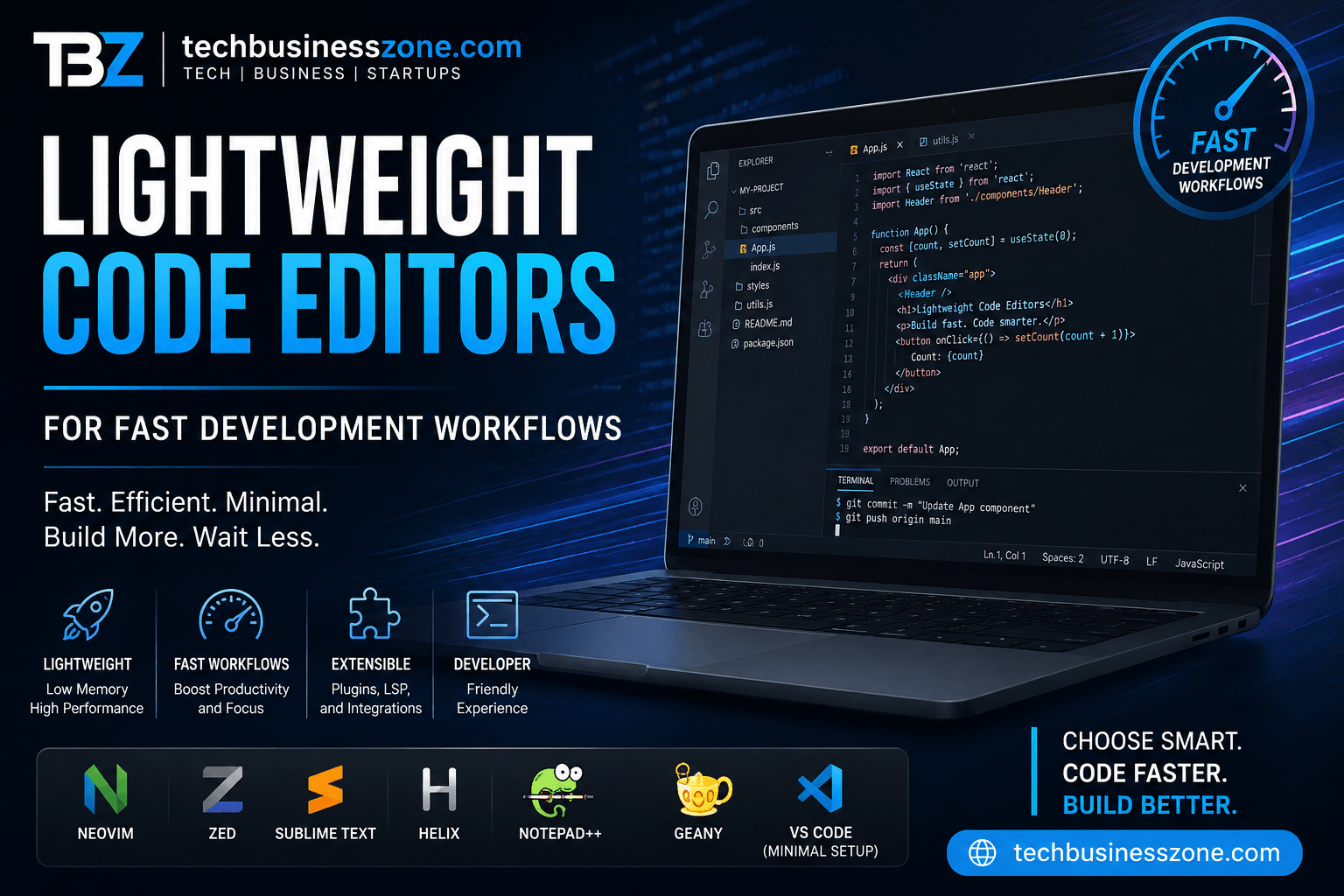
Lightweight Code Editors for Fast Development Workflows
Choosing a code editor used to feel like a minor developer preference. Today, it can have a noticeable effect on how quickly you open projects, navigate repositories, review changes, run commands, and move between coding tasks. A developer working on a modern laptop may not notice a few hundred megabytes of memory usage. Put the same workload on an older machine, a remote development server, or a large monorepo, however, and the difference becomes much easier to see. That is where lightweight code editors become particularly useful.
The best editor is not necessarily the one with the fewest features. It is the one that gives you the features you actually need without creating unnecessary overhead.
For some developers, that means a terminal-first editor such as Neovim or Helix. For others, a graphical editor such as Zed or Sublime Text makes more sense. Some teams may even achieve the right balance by stripping an existing editor such as Visual Studio Code down to a carefully selected set of extensions.
This guide examines how lightweight editors fit into modern development workflows, what features matter, how to compare them, and where their limitations become apparent.
AI Overview Direct Answer
What are the best lightweight code editors for fast development workflows?
Lightweight code editors are development tools designed to provide fast startup, responsive editing, relatively low resource consumption, and essential programming features without the overhead of a traditional full-featured IDE. Popular choices include Neovim, Helix, Zed, Sublime Text, Notepad++, Geany, and a minimally configured Visual Studio Code installation.
The right choice depends on the workflow. Terminal-oriented developers may prefer Neovim or Helix, while developers who want a graphical interface with modern language support may prefer Zed, Sublime Text, or a streamlined VS Code setup.
The word “lightweight” should not be interpreted as “featureless.” A modern editor can support syntax highlighting, code completion, Git, language servers, debugging, extensions, terminals, remote development, and even AI coding assistants while remaining relatively efficient.
What Are Lightweight Code Editors?
A lightweight code editors focuses on the core act of working with source code without automatically loading every tool associated with a complete integrated development environment. That distinction matters because developers have very different requirements.
A frontend developer might need excellent JavaScript and TypeScript support but little else. A DevOps engineer may spend most of the day editing YAML, Terraform, Dockerfiles, and shell scripts. A systems programmer may care more about LSP performance, terminal integration, and keyboard navigation.
Lightweight Code Editor vs. Full IDE
The biggest difference between an editor and an IDE is usually the amount of functionality included by default.
A traditional IDE often bundles project management, debugging, build tools, version-control interfaces, database tools, profilers, visual designers, package management, and language-specific features into one environment.
A lightweight editor generally starts with a smaller core and lets the developer add functionality when needed.
That can produce several practical differences:
| Area | Lightweight Editor | Full IDE |
|---|---|---|
| Startup | Usually fast | Often heavier |
| RAM usage | Generally lower | Generally higher |
| CPU overhead | Lower in minimal setups | Can be substantial |
| Features | Add what you need | Many features included |
| Extensions | Often central to workflow | Usually available |
| Debugging | Varies by editor | Usually comprehensive |
| Project management | Basic to moderate | Usually advanced |
| Customization | Often extensive | Varies |
| Learning curve | Can be low or high | Usually moderate |
Neither approach is automatically superior.
If you are building a large enterprise application that requires advanced debugging, database tooling, profiling, and framework-specific integrations, a full IDE may save time. If your work consists primarily of editing files, running commands, reviewing Git changes, and using language servers, a smaller environment may be more efficient.
Why Developer Workflows Are Becoming More Lightweight
Modern development is no longer tied to one powerful desktop workstation.
Developers increasingly work from laptops, cloud environments, containers, remote servers, virtual machines, and shared development environments. In those situations, unnecessary software overhead becomes more noticeable.
A lightweight development environment can also make sense for teams that standardize around containers and command-line tools. Instead of expecting the editor to understand every aspect of the project, the developer can let Git, the terminal, language servers, package managers, build systems, and CI/CD pipelines handle their respective jobs.
AI-assisted programming adds another dimension. Developers now have additional background processes for code indexing, embeddings, model requests, autocomplete, or agent workflows. Keeping the underlying editor efficient can therefore help preserve overall responsiveness.
Key Characteristics of a Fast Code Editor
A genuinely fast editor should do more than launch quickly.
Look for:
- Fast startup and project loading
- Low memory footprint
- Responsive typing
- Syntax highlighting
- Code completion
- Language Server Protocol support
- Git integration
- Terminal access
- Useful plugins
- Keyboard-driven navigation
- Fast search
- Efficient file switching
The ideal combination depends on your workload. A minimal editor with no language intelligence may feel fast but slow you down through manual navigation. Conversely, an editor overloaded with extensions may have impressive capabilities but lose the responsiveness that made it attractive.
The goal is balance.
Why Lightweight Code Editors Matter for Fast Development Workflows
Editor performance is not just a benchmark number. It affects the small interactions developers repeat hundreds of times each day: opening files, searching symbols, switching projects, running commands, reviewing changes, and responding to compiler errors.
Faster Startup and Project Loading
Imagine opening an editor dozens of times during a working day.
A few seconds may seem insignificant, but repeated delays add up. The same principle applies when opening a large repository, switching branches, or loading a project after a system restart.
Fast code editors reduce that friction by limiting unnecessary startup processes and background services.
The benefit becomes even more obvious when working on older machines or remote systems where CPU and storage performance are constrained.
Lower RAM and CPU Consumption
Memory usage matters when the editor is the only application competing for system resources.
A developer might simultaneously run:
- A browser with multiple tabs
- Docker containers
- A database
- Local development servers
- An API client
- A terminal
- An AI assistant
- Testing tools
An editor consuming excessive resources can push the entire workstation toward swapping or CPU contention.
A low-memory code editor can leave more resources available for the applications that actually execute and test your software.
Reduced Distractions and Interface Clutter
Performance is only one part of developer productivity.
A minimal interface can make it easier to concentrate on source code. Developers who prefer keyboard-driven workflows may not want multiple panels, visual dashboards, notifications, and project-management features competing for attention.
This is one reason minimal code editor configurations remain popular even when developers have access to much larger IDEs.
Minimalism, however, should be intentional. Removing useful features simply because they consume resources can create a different kind of inefficiency.
Faster Navigation Across Large Codebases
Navigation becomes increasingly important as repositories grow.
A good editor should make it easy to:
- Search filenames
- Search text
- Jump to symbols
- Find references
- Navigate definitions
- Switch between recently edited files
- Inspect Git changes
For large projects, indexing can become a significant source of CPU and memory usage. A well-configured editor should let developers exclude generated files, dependency directories, build artifacts, and other irrelevant content.
That can make a bigger difference than choosing an editor based purely on its installation size.
Better Performance on Older Hardware
Not every developer has a workstation with 64 GB of RAM and a high-end processor.
Students, freelancers, remote workers, and developers working with older laptops can benefit significantly from code editors for low-end PCs.
A lighter editor can extend the useful life of an older machine and make programming accessible without requiring an expensive hardware upgrade.
Efficient Remote and Cloud Development
Remote development introduces another constraint: latency.
An editor communicating with a remote environment must deal with network delays, remote file systems, authentication, indexing, and sometimes containerized development environments.
A resource-efficient editor can help, but configuration matters just as much.
Developers should avoid unnecessarily indexing remote dependency directories and should carefully configure file watchers and language servers.
How to Choose the Best Lightweight Code Editors
Choosing the best lightweight code editors based solely on memory usage is a mistake. The right tool should fit the languages, repositories, operating systems, collaboration model, and development habits you already use.
Performance and Memory Usage
Start with the workload rather than the marketing specification.
Measure the editor while:
- Opening an empty project.
- Loading a normal repository.
- Opening a large repository.
- Running your language server.
- Using Git integration.
- Searching across the project.
- Running extensions or plugins.
An editor that looks lightweight while idle may behave very differently once a large TypeScript project, language server, Git repository, and AI extension are active.
Programming Language Support
Your editor should understand the languages you actually use.
Check support for:
- Python
- JavaScript
- TypeScript
- HTML
- CSS
- PHP
- Java
- C
- C++
- Rust
- Go
- Shell
- SQL
- YAML
- JSON
Don’t confuse syntax highlighting with genuine language support. A file can have attractive colors while providing little help with navigation, diagnostics, completion, or refactoring.
Syntax Highlighting and Code Intelligence
Syntax highlighting makes code easier to scan, but code intelligence goes much further.
Useful features include:
- Autocomplete
- Error detection
- Go-to-definition
- Find references
- Symbol navigation
- Refactoring
- Documentation hints
- Parameter information
These features can transform a simple text editor into a capable programming environment without requiring the full footprint of a traditional IDE.
Language Server Protocol Support
The Language Server Protocol, commonly called LSP, allows editors to communicate with language-specific servers.
This creates a separation between the editor and language tooling.
Instead of an editor implementing every programming language independently, an LSP server can provide diagnostics, completion, navigation, and other intelligence.
For developers using multiple languages, this can be a major advantage.
Git and Version Control Integration
Git should be part of your workflow whether the editor provides a graphical interface or not.
Useful capabilities include:
- Viewing changed files
- Comparing diffs
- Staging changes
- Reviewing branches
- Inspecting history
- Resolving conflicts
Some developers prefer graphical Git integration. Others simply use the terminal.
There is no requirement that an editor provide every Git feature itself.
Extensions and Plugin Ecosystem
Extensions can transform a basic editor into a complete development environment.
They can also destroy its performance advantage.
Installing dozens of plugins because they look useful is an easy way to turn a fast editor into a slow one.
Use a simple rule: install a plugin because it solves a real recurring problem, not because it might be useful someday.
Review extension activity, permissions, maintenance, compatibility, and resource usage before adding it to a professional workflow.
Integrated Terminal
A terminal is particularly valuable in lightweight development.
Instead of forcing developers to use graphical interfaces for every task, the terminal provides direct access to:
- Git
- Package managers
- Build systems
- Test runners
- Containers
- SSH
- Deployment tools
- Scripts
This creates a clean division between editing and execution.
Debugging Support
Debugging requirements vary significantly.
A frontend developer may need browser debugging. A Python developer may want breakpoints and variable inspection. A systems developer may rely heavily on command-line debugging tools.
If advanced debugging is central to your workflow, evaluate it before choosing a lightweight editor.
This is one area where a full IDE can still have a substantial advantage.
Customization Options
Some developers want a ready-made environment. Others want complete control.
Editors such as Neovim offer extensive configuration possibilities, while graphical editors generally provide a more approachable starting point.
Customization should improve your workflow rather than become the workflow.
Spending three days perfecting an editor configuration that saves ten seconds per day is rarely a good productivity investment.
AI Coding Assistant Compatibility
AI coding assistants are now part of many development workflows.
When evaluating an editor, consider whether your preferred AI tools support:
- Inline completion
- Chat
- Code explanation
- Refactoring
- Repository context
- Agentic workflows
- Terminal commands
- Local models
- Cloud models
AI features can introduce additional CPU, memory, indexing, and network activity. Therefore, a lightweight editor paired with a heavyweight AI stack may not feel lightweight in practice.
Cross-Platform Availability
If you move between Windows, macOS, Linux, and remote servers, cross-platform support becomes valuable.
Also check whether your configuration can be transferred easily between machines.
For terminal-oriented developers, portability can be especially attractive because configuration files can often be stored alongside dotfiles and synchronized across environments.
Open-Source vs. Proprietary Licensing
Open-source software provides transparency, community contributions, and the ability to inspect or modify the source.
Proprietary editors can offer polished interfaces, commercial support, or specialized features.
For individual developers, either model can work.
For businesses, licensing should be evaluated alongside security, support, compliance, deployment requirements, and long-term maintenance.
Best Lightweight Code Editors for Fast Development Workflows
There is no universal winner here. Different editors optimize different development styles, and the best choice often becomes obvious once you identify how you prefer to work.
Neovim — Best for Keyboard-Driven Development
Neovim is a strong option for developers who enjoy terminal-based development and extensive customization.
Its appeal comes from speed, keyboard-driven navigation, Lua configuration, LSP support, and a large plugin ecosystem.
The trade-off is the learning curve. Neovim can be incredibly efficient after configuration, but beginners may initially spend more time learning commands and designing their environment.
It is particularly attractive for developers who frequently work through SSH, containers, Linux servers, or terminal-heavy workflows.
Zed — Best for a Modern Performance-Focused Interface
Zed takes a different approach.
Instead of recreating the traditional heavyweight IDE, it focuses on a modern editing experience with performance, collaboration, and AI-assisted workflows as important parts of the product direction.
Developers who want a graphical environment but dislike sluggish interfaces may find Zed particularly interesting.
Its suitability depends on the languages, plugins, operating system, and collaboration features required by the individual workflow.
Sublime Text — Best for Speed and Simplicity
Sublime Text has long been associated with fast startup and responsive editing.
Its interface is intentionally restrained, while features such as multiple selections, command search, file navigation, and packages make it considerably more capable than a basic text editor.
It is a particularly useful option for developers who value responsiveness but don’t necessarily want to configure a terminal-based environment.
Helix — Best for Modal Editing With Minimal Configuration
Helix takes inspiration from modal editing while attempting to provide many modern programming capabilities without requiring a massive configuration exercise.
LSP and Tree-sitter integration are central to its development experience.
For developers who like keyboard-first editing but want a more integrated starting point than a heavily customized Vim setup, Helix deserves consideration.
Notepad++ — Best Lightweight Windows Editor
Notepad++ remains useful for developers who need a fast Windows-based editor for source code, configuration files, scripts, logs, and quick modifications.
It is not designed to replace every professional IDE.
Its strength is simplicity, speed, and a mature plugin ecosystem.
For quick edits on Windows systems, that can be exactly what is required.
Geany — Best Lightweight IDE Alternative
Geany sits somewhere between a traditional text editor and a full IDE.
It offers project-oriented functionality, syntax highlighting, build capabilities, and plugins without attempting to provide the enormous feature set of a heavyweight development suite.
That makes it interesting for developers who want more structure than a basic editor but less overhead than a large IDE.
Visual Studio Code With a Minimal Configuration
Visual Studio Code is not always the first application people think of when discussing lightweight editors.
Its extension ecosystem can make installations quite heavy.
Yet a carefully configured VS Code environment can be surprisingly efficient for developers who disable unnecessary extensions and background functionality.
The advantage is ecosystem depth. You can keep a familiar interface while selectively installing language support, Git tools, debugging capabilities, and AI integrations.
Comparative Analysis of Lightweight Code Editors
Comparing editors purely by startup time misses the bigger picture. Hosting, collaboration, scalability, language support, configuration requirements, and team size can be equally important.
| Editor | Open Source | Hosting Requirement | Scalability | Best Team Size | Core Strength |
|---|---|---|---|---|---|
| Neovim | Yes | Local/self-managed | High | Individual to large teams | Keyboard-driven development |
| Helix | Yes | Local/self-managed | High | Individual to teams | Modal editing and LSP |
| Zed | Yes | Primarily local with cloud-connected capabilities depending on workflow | High | Individual to teams | Modern performance-focused workflow |
| Geany | Yes | Local | Moderate | Individual to small teams | Lightweight IDE features |
| Notepad++ | Yes | Local | Moderate | Individual to small teams | Fast Windows editing |
| Sublime Text | No | Local | High | Individual to teams | Speed and simplicity |
| VS Code | Yes | Local/cloud options | Very high | Individual to enterprise | Ecosystem and extensibility |
These categories should be treated as workflow guidance rather than absolute benchmarks. Software releases, extensions, operating systems, and configurations can change performance substantially.
Lightweight Code Editors vs. Traditional IDEs
The editor-versus-IDE debate has lasted for years because both approaches solve different problems. The better question is not which category wins, but which one removes more friction from your particular development process.
Performance Comparison
A lightweight editor generally gives you more control over what runs in the background.
A full IDE may automatically index projects, load language-specific services, inspect dependencies, connect to databases, and initialize debugging systems.
That convenience can be valuable. It can also be unnecessary overhead for simple projects.
Feature Comparison
IDEs generally win when you need an integrated collection of advanced tools.
Lightweight editors win when you prefer modularity.
You can assemble exactly what you need instead of accepting an enormous feature set.
Memory Consumption
Memory usage depends heavily on configuration.
A small editor with 30 extensions may consume more resources than a carefully configured larger application.
That’s why low-resource code editors should be evaluated under real workloads rather than idle conditions.
Startup and Loading Speed
Startup time is one area where lightweight tools often have an obvious advantage.
This matters when developers frequently open temporary projects, edit remote files, work with scripts, or switch between repositories.
Debugging Capabilities
Modern editors can support excellent debugging, but the experience varies.
If debugging is central to your work, test the debugger with your actual language and framework before committing to a lightweight setup.
Extension and Plugin Ecosystems
Extensions allow lightweight environments to grow with you.
The downside is fragmentation. You may have to research which plugins work together and maintain your own configuration.
An IDE often makes these decisions for you.
Which Option Is Better for Professional Developers?
Professional developers use both.
A frontend engineer may prefer VS Code or Zed. A systems engineer may spend most of the day in Neovim. A Java developer working on enterprise applications may be better served by a specialized IDE.
The goal isn’t ideological minimalism.
The goal is a fast development workflow that helps you produce reliable software.
Lightweight Code Editors for Different Development Workflows
Different languages and engineering disciplines create different requirements. The editor that works beautifully for shell scripting may be a poor choice for enterprise Java development.
Best Lightweight Editors for Web Development
Web developers need strong HTML, CSS, JavaScript, and TypeScript support.
React, Vue, Angular, Node.js, package managers, browser tooling, and Git can add additional requirements.
For web development, prioritize LSP quality, fast search, project navigation, integrated terminals, and reliable extension support.
Best Lightweight Editors for Python Development
Python developers should look for excellent language-server support, virtual-environment awareness, linting, testing integration, and debugging.
A lightweight editor can work extremely well for Python when the language tooling is configured correctly.
Best Lightweight Editors for C and C++
C and C++ development can become demanding because projects often involve large codebases, complex build systems, generated files, and extensive dependencies.
LSP performance and indexing efficiency should therefore be major considerations.
Best Lightweight Editors for Rust
Rust developers often rely heavily on language intelligence because compiler diagnostics and type information are central to the development experience.
A lightweight editor is perfectly viable, provided its Rust tooling is mature enough for the workflow.
Best Lightweight Editors for Go
Go has a relatively straightforward development model, making it well suited to streamlined editor setups.
Developers should prioritize formatting, diagnostics, testing, module navigation, and debugging.
Best Lightweight Editors for Java Development
Java projects can be complex, especially when they involve Maven, Gradle, Spring, enterprise dependencies, and large codebases.
A lightweight editor can work, but developers should carefully compare its Java tooling against the integrated capabilities of established Java IDEs.
Best Lightweight Editors for PHP Development
PHP developers typically need PHP language intelligence, Composer support, framework awareness, debugging, and database access.
For Laravel and similar frameworks, extension quality becomes especially important.
Best Lightweight Editors for DevOps and Infrastructure
DevOps engineers frequently edit:
- YAML
- JSON
- Bash
- Dockerfiles
- Terraform
- Kubernetes manifests
- CI/CD configurations
This is an area where a lightweight editor can be particularly effective because many tasks involve editing configuration and running commands in a terminal.
Best Lightweight Editors for Remote Development
Remote developers should prioritize SSH support, reliable file synchronization, low network chatter, terminal integration, and remote language-server capabilities.
A fast local editor can still feel slow if it repeatedly transfers unnecessary files over a network connection.
Personal Experience: Building a Faster Development Workflow With a Lightweight Editor
The most useful editor comparison isn’t based on screenshots or feature checklists. It comes from putting different tools through the same repetitive workflow and observing where friction appears.
Why I Started Looking for a Lightweight Code Editor
The search usually begins with a familiar problem: the development machine feels slower than it should.
You open an editor, wait for the project to load, watch extensions initialize, start a terminal, open a browser, and suddenly a simple coding session involves several layers of software.
The goal of switching to a lightweight editor isn’t necessarily to eliminate every feature. It is to remove the features that don’t contribute to the work.
Testing Different Editors Against the Same Workflow
A practical comparison should use the same project and repeat the same operations.
For example:
- Launch the editor.
- Open the same repository.
- Search for a function.
- Navigate to its definition.
- Edit several files.
- Run the test suite.
- Check Git changes.
- Open a terminal.
- Install or enable required tooling.
- Repeat the process on a larger repository.
This creates a more useful comparison than simply recording an application’s idle memory usage.
The Biggest Implementation Hurdles
Switching editors can create unexpected friction.
Keyboard shortcuts may change. Plugins may have different names. Configuration formats may be unfamiliar. Debugging workflows may need rebuilding.
Developers who move from a full IDE to a minimal environment can also discover that some features they considered “basic” were actually provided by several integrated services.
That realization is valuable.
It helps identify which functionality is genuinely necessary and which was simply convenient.
What Actually Improved Development Speed
The biggest improvement often comes from removing interruptions rather than chasing benchmark records.
Fast file search, reliable code navigation, good LSP support, quick terminal access, and sensible keyboard shortcuts can have a larger impact than shaving another second from startup time.
This is where developer productivity tools should be evaluated as a system rather than individually.
Lessons Learned From Switching Editors
The fastest editor is not necessarily the most productive editor.
An editor that launches instantly but requires constant configuration may slow down a beginner.
Likewise, an editor with extensive functionality can become inefficient when developers spend more time managing plugins than writing code.
The practical lesson is simple: optimize the workflow, not the benchmark.
Optimizing a Lightweight Code Editor for Maximum Performance
A good editor can become slow when it is poorly configured. Performance tuning is therefore just as much about removing unnecessary work as choosing the application itself.
Remove Unnecessary Extensions
Review installed extensions periodically.
Remove tools you no longer use, especially those that run continuously in the background.
Disable Background Features You Don’t Use
Indexing, file watching, telemetry, automatic scanning, and project analysis can all consume resources.
Disable what your workflow doesn’t require.
Optimize File Indexing
Exclude directories such as:
- Dependencies
- Build output
- Cache directories
- Generated files
- Large logs
- Temporary files
This can dramatically reduce unnecessary scanning.
Configure Language Servers Carefully
Language servers provide valuable intelligence, but they can become resource-intensive in huge projects.
Limit workspace scope where possible and avoid indexing irrelevant directories.
Reduce Large Project Scanning
Monorepos can contain hundreds of thousands or even millions of files.
Your editor does not need to understand all of them simultaneously.
Configure project exclusions intelligently.
Use Keyboard Shortcuts and Command Palettes
Keyboard navigation reduces context switching.
Learn the commands you perform repeatedly rather than trying to memorize every shortcut.
Integrate Git Efficiently
Use the editor for quick reviews and the terminal for operations that are easier through commands.
There is no reason to force every Git action through a graphical interface.
Use AI Coding Tools Without Overloading the Editor
AI can accelerate development, but more AI features do not automatically mean better performance.
Use repository indexing, autocomplete, agents, and background analysis selectively.
AI Coding Assistants and Lightweight Editors in 2026
AI has changed what developers expect from editors. A lightweight environment can now provide access to capabilities that previously required a much larger development suite.
AI Code Completion
Inline completion can reduce repetitive typing and help developers explore APIs faster.
However, completion quality depends on context, language support, and project configuration.
AI-Powered Code Search
AI can help developers find relevant functions, configuration files, or implementation patterns without manually searching every directory.
This is particularly useful in unfamiliar repositories.
AI Debugging Assistance
Developers can use AI to explain error messages, suggest fixes, generate test cases, and analyze suspicious code.
These tools should support developer judgment rather than replace testing and code review.
Natural-Language Refactoring
AI assistants can translate a request such as “extract this logic into a reusable function” into a proposed code change.
The important part is reviewing the resulting diff carefully.
Local AI Models vs. Cloud AI Assistants
Local models can offer privacy and potentially lower network dependency, while cloud models may provide access to larger or more capable systems.
The choice depends on:
- Hardware
- Privacy requirements
- Project sensitivity
- Model quality
- Cost
- Network availability
Does AI Make Lightweight Editors Less Lightweight?
Potentially, yes.
The editor itself may be efficient while AI indexing, language servers, plugins, terminals, browsers, and containers consume substantial resources around it.
That’s why high-performance code editor discussions increasingly need to consider the entire development stack.
Balancing AI Features With Performance
Start with the AI capabilities that provide measurable value.
If an AI extension causes constant indexing, high CPU usage, or noticeable typing latency, reconsider its configuration.
A fast development workflow should remain responsive while AI works in the background.
Lightweight Editors for Low-End and Older Hardware
Developers shouldn’t need a premium workstation just to edit code. With the right configuration, older machines can remain useful development systems.
Choosing an Editor With Limited RAM
If a machine has limited memory, prioritize applications that don’t require a large collection of background services.
Also consider what else is running simultaneously.
Development on Older Laptops
An older laptop can still handle programming effectively if unnecessary applications are removed and the editor is configured carefully.
Storage upgrades can also make a substantial difference when project loading and dependency operations are slow.
CPU Usage and Background Processes
Watch CPU usage during indexing, autocomplete, project searches, and AI operations.
A low idle number means little if the editor consumes an entire CPU core every time you switch files.
Working Without a Dedicated GPU
Most traditional code editing doesn’t require a dedicated GPU.
Developers should prioritize CPU performance, RAM, SSD storage, and operating-system efficiency before buying specialized graphics hardware for ordinary programming.
Lightweight Editors for Students
Students often work with modest hardware.
A lightweight editor provides an accessible way to learn multiple languages without requiring expensive development hardware.
Lightweight Editors for Budget Development Machines
For budget systems, combine an efficient editor with:
- An SSD
- Sufficient RAM
- A clean operating system
- Minimal background software
- Efficient project exclusions
- Terminal-based tools where appropriate
The result can be surprisingly capable.
Security Considerations When Using Lightweight Code Editors
Performance should never come at the expense of security. A small editor can still introduce significant risk through plugins, extensions, scripts, and integrations.
Plugin and Extension Security
Treat extensions as software dependencies.
Check who maintains them, how frequently they are updated, what permissions they request, and whether the project is still actively maintained.
Supply-Chain Risks
A compromised extension can potentially access source code, credentials, files, or network resources.
For professional environments, consider approved extension lists and centralized policies.
Third-Party Package Permissions
Don’t grant broad permissions without understanding why they are needed.
This becomes especially important when using AI tools or extensions that interact with entire repositories.
Protecting API Keys and Environment Variables
Never store secrets directly inside source files.
Use environment variables, secret managers, and appropriate access controls.
An editor should make it easier to avoid accidental exposure rather than encourage developers to keep credentials inside projects.
Secure Git and SSH Configuration
Use proper SSH keys, credential management, repository permissions, and protected branches.
Review what your editor and plugins can access when interacting with Git repositories.
Updating Editors and Plugins
Security updates matter even when an application appears stable.
Keep the editor and essential extensions updated, but avoid blindly installing every plugin update in a production environment without considering compatibility.
Enterprise Security Considerations
Businesses should evaluate:
- Data handling
- Telemetry
- Extension permissions
- AI provider policies
- Source-code exposure
- Authentication
- Centralized configuration
- Compliance requirements
A lightweight editor should fit the organization’s security architecture rather than bypass it.
Advanced Edge Cases and Troubleshooting
The simple use case is easy: install an editor, open a file, and start coding. Problems emerge when repositories become large, environments become remote, or teams introduce strict security controls.
Migrating From a Full IDE to a Lightweight Editor
Migration works best when treated as a workflow redesign.
Document the features you currently use:
- Debugging
- Code completion
- Refactoring
- Git
- Testing
- Build systems
- Database tools
- Framework support
Then determine which should move into the editor, which should remain command-line tools, and which you can remove.
Self-Hosting and Remote Development Migration Issues
Self-hosted development environments introduce additional variables.
SSH authentication, filesystem permissions, network latency, containers, remote language servers, and development databases all need to work together.
Start with a simple remote workflow before moving an entire team.
Security Hardening for Lightweight Editors
Organizations can establish:
- Approved extension lists
- Restricted plugin installation
- Workspace policies
- Secure configuration management
- Credential isolation
- Regular software updates
The editor should become part of the organization’s endpoint-security strategy.
Database and Large-Codebase Scaling Problems
Large repositories can expose weaknesses that aren’t visible in small projects.
A repository with millions of files can overwhelm file watchers and indexing systems.
Exclude generated content and dependency directories first.
If the problem persists, test whether your language server or specific extension is responsible.
Permission and Ownership Edge Cases
Permission problems often appear after moving projects between:
- Windows
- Linux
- macOS
- Containers
- Remote servers
A file may appear editable in one environment but become read-only in another.
Check ownership, filesystem permissions, container user IDs, and mounted-volume configuration before changing permissions broadly.
When a Lightweight Editor Becomes Too Lightweight
There is a point where removing features stops helping.
If you spend hours assembling debugging, profiling, database, build, and framework integrations, a full IDE may be the more efficient solution.
The objective is productivity, not minimal software consumption.
Troubleshooting High CPU Usage
Start by disabling extensions.
Then check:
- File indexing
- Language servers
- File watchers
- AI tools
- Large generated directories
- Git integrations
Re-enable components one at a time to identify the source.
Troubleshooting Slow File Search
Exclude dependency and build directories first.
Then check indexing configuration and repository size.
If terminal search is dramatically faster, consider using dedicated command-line search tools alongside the editor.
Troubleshooting Language Server Problems
Check:
- Correct language-server installation
- Project root
- Runtime version
- Dependency installation
- Configuration files
- Environment variables
- Workspace permissions
Many apparent editor problems are actually language-tooling configuration problems.
Troubleshooting Plugin Conflicts
Disable all nonessential plugins and reintroduce them individually.
If the problem disappears, you can identify the conflicting extension through controlled testing rather than randomly changing settings.
Troubleshooting Remote Development Latency
Reduce unnecessary filesystem operations.
Avoid scanning enormous remote directories and keep frequently accessed tooling close to the environment where it runs.
Network architecture matters as much as editor choice.
Common Mistakes Developers Make When Choosing Lightweight Editors
Lightweight software can be extremely effective, but only when selected for the right reasons.
Choosing Based Only on RAM Usage
RAM is one metric.
A developer might save 300 MB but lose hours because the editor lacks good navigation or debugging.
Installing Too Many Extensions
This is probably the easiest way to destroy the benefits of a lightweight setup.
Start small and add extensions only when a real need appears.
Ignoring Language Support
An editor with beautiful syntax highlighting isn’t necessarily a good programming environment.
Evaluate LSP, diagnostics, completion, navigation, debugging, and testing.
Underestimating the Learning Curve
Terminal editors can be exceptionally productive once learned.
They can also be frustrating during the first few days.
Factor training time into your decision.
Switching Editors Too Frequently
Constant experimentation feels productive because you’re always configuring something.
But configuration isn’t software development.
Once an editor works well, spend your time building software.
Ignoring Security
A small application can still have a large attack surface when surrounded by plugins and third-party integrations.
Treat extensions like software dependencies.
Confusing an Editor With an IDE
Not every workflow needs an IDE.
Not every workflow should avoid one either.
Understand the difference before making the decision.
Optimizing Benchmarks Instead of Developer Experience
The editor with the lowest memory footprint isn’t automatically the editor that lets you finish work fastest.
Measure the entire workflow.
How to Build a Fast Lightweight Development Workflow
A fast workflow comes from reducing unnecessary decisions and repeated friction. The editor is only one part of the system.
Step 1 — Identify Your Development Tasks
Write down what you actually do each day.
Don’t select tools based on hypothetical future requirements.
Step 2 — Select the Minimum Required Features
Start with:
- Editing
- Search
- Navigation
- Language support
- Git
- Terminal
Add other capabilities only when necessary.
Step 3 — Choose Your Editor
Match the editor to your working style.
Keyboard-oriented developers may gravitate toward Neovim or Helix. Developers who want a graphical interface may prefer Zed, Sublime Text, or a streamlined VS Code configuration.
Step 4 — Configure LSP and Syntax Support
Set up language intelligence before installing dozens of unrelated plugins.
Good LSP support can provide a surprisingly complete programming experience.
Step 5 — Add Git Integration
Choose either a graphical Git interface, terminal workflow, or combination of both.
Step 6 — Connect Your Terminal
Keep build, testing, package management, deployment, and infrastructure tools accessible.
Step 7 — Add Only Essential Plugins
Every plugin introduces some combination of maintenance, resource consumption, security risk, or compatibility requirements.
Step 8 — Integrate AI Assistance Carefully
Use AI where it saves time.
Avoid adding AI features simply because they are available.
Step 9 — Measure Performance
Test startup, memory, CPU, project loading, search, and typing responsiveness.
Compare the results with your normal development workload.
Step 10 — Standardize the Workflow Across the Team
Teams don’t necessarily need identical editors.
They do benefit from standardized:
- Git conventions
- Formatting
- Linting
- Testing
- Development containers
- Language versions
- Security policies
This allows developers to choose an interface without fragmenting the underlying workflow.
Lightweight Code Editor Performance Benchmarking
Benchmarking can make an editor comparison more useful, but only if the methodology resembles real development.
Startup Time
Measure cold and warm launches.
Record several runs rather than relying on a single result.
Memory Usage
Measure both idle usage and active project usage.
Test the editor with the extensions and language servers you actually use.
CPU Utilization
Monitor CPU while:
- Indexing
- Searching
- Editing
- Running diagnostics
- Using AI tools
Large Project Loading
Use the same repository across editors.
Large projects expose indexing and filesystem limitations that tiny demo projects hide.
Search Performance
Test both filename and content search.
Use a repository large enough to make indexing meaningful.
File Switching Speed
Rapidly switch between frequently used files and measure responsiveness.
This reflects real developer behavior better than a synthetic benchmark.
Extension Overhead
Record the baseline installation first.
Then add your normal extensions and measure again.
This reveals whether the editor itself or the surrounding ecosystem creates the resource burden.
Battery Impact on Laptops
For mobile developers, battery life matters.
A tool that constantly consumes CPU in the background can shorten a laptop session even when the editor appears responsive.
| Metric | Test Method | Why It Matters |
|---|---|---|
| Startup time | Cold and warm launch | Repeated daily friction |
| RAM usage | Idle and active project | Resource availability |
| CPU usage | Indexing and editing | Responsiveness |
| Search speed | Large repository | Navigation efficiency |
| Project loading | Same repository | Real-world performance |
| Extension overhead | Baseline vs configured | Configuration impact |
| Battery impact | Fixed work session | Mobile development |
Which Lightweight Code Editor Should You Choose?
There is no single answer because developers don’t all work the same way. The right decision comes down to the combination of performance, language support, tooling, interface preferences, and maintenance requirements.
Choose Neovim If You Prefer Terminal-Based Workflows
Neovim is particularly compelling if you spend significant time in terminals, SSH sessions, Linux environments, or keyboard-driven workflows.
Choose Zed If You Want a Modern Performance-Focused Interface
Zed is worth evaluating if you want a graphical experience without the feel of a traditional heavyweight development environment.
Choose Sublime Text If Speed and Simplicity Matter Most
Sublime Text is a strong choice for developers who want a polished, responsive editor without excessive complexity.
Choose Helix If You Want Built-In Modal Editing Features
Helix appeals to developers who like modal editing but want a modern approach to language tooling and editor functionality.
Choose Notepad++ for Fast Windows-Based Editing
For quick source-code, configuration, log, and script editing on Windows, Notepad++ remains practical.
Choose Geany for Lightweight IDE-Like Features
Geany makes sense when you want project and development functionality without adopting a heavyweight IDE.
Choose a Minimal VS Code Setup for Maximum Ecosystem Compatibility
If your team relies heavily on the VS Code ecosystem, you don’t necessarily need to abandon it.
Instead, remove unnecessary extensions and background features and create a deliberately minimal configuration.
People Also Ask: Lightweight Code Editors FAQ
These questions reflect the kinds of concerns developers commonly have when evaluating fast, low-overhead development environments.
What is the lightest code editor?
There is no universal “lightest” editor because resource consumption changes with operating system, configuration, plugins, project size, and language tooling. Terminal-based editors such as Vim, Neovim, and Helix can be extremely efficient, while graphical options can also remain lightweight when configured carefully.
What is the best lightweight code editor in 2026?
The best option depends on your workflow. Neovim and Helix are attractive for terminal-focused developers, Zed and Sublime Text appeal to graphical-editor users, and a minimal VS Code setup offers extensive ecosystem compatibility.
Is VS Code considered a lightweight code editor?
VS Code can be relatively efficient in a minimal configuration, but its extensions and project services can significantly increase resource consumption. It is better described as a flexible editor that can be configured for lighter workflows rather than assuming every installation is lightweight.
Is Neovim faster than VS Code?
Neovim can have lower overhead in many configurations, particularly for terminal-based workflows. However, performance depends on plugins, language servers, repository size, operating system, and what VS Code extensions are enabled. Real-world testing is more useful than assuming one is always faster.
Which code editor uses the least RAM?
There is no permanent winner. Memory usage varies by platform and workload. A simple editor may use very little memory, while a fully configured environment with LSP servers, plugins, indexing, and AI tools can consume considerably more.
Are lightweight code editors good for professional development?
Yes. Professional developers use lightweight editors across web development, systems programming, DevOps, scripting, infrastructure, and remote development. The key is whether the editor provides the language and workflow capabilities the project requires.
What is the best lightweight editor for low-end PCs?
Look for editors with low background activity, efficient indexing, modest extension requirements, and good responsiveness. Notepad++, Geany, Sublime Text, and terminal-oriented editors can all be appropriate depending on the operating system and development requirements.
Are lightweight code editors better than IDEs?
Not universally. Lightweight editors are often better for developers who value modularity, speed, and control. IDEs can be better for projects that require integrated debugging, profiling, database tools, advanced framework support, and comprehensive project management.
Can lightweight code editors use AI coding assistants?
Yes. Many modern editors can integrate AI-powered completion, chat, code explanation, refactoring, and agentic workflows. The specific capabilities depend on the editor and extension ecosystem.
Which lightweight code editor is best for beginners?
Beginners generally benefit from an interface that doesn’t create unnecessary complexity. Graphical editors such as Sublime Text, Zed, or a carefully configured VS Code environment may provide an easier starting point than a heavily customized terminal editor. The best choice ultimately depends on the programming language being learned.
Final Verdict: Are Lightweight Code Editors Worth Using?
Lightweight code editors are absolutely worth considering when speed, responsiveness, and resource efficiency are meaningful parts of your development workflow.
But lightweight should never become a goal by itself.
A developer who spends all day debugging a complex enterprise application may gain more from an IDE’s integrated tooling than from saving memory. A DevOps engineer editing Kubernetes manifests over SSH may have the opposite experience. A student using an older laptop may benefit enormously from a low-overhead editor, while a team working inside a standardized enterprise environment may prioritize compatibility and support.
The strongest approach is to start with your workflow.
Identify the languages you use, the size of your repositories, the debugging features you need, how heavily you rely on Git and the terminal, whether you work remotely, and how much AI tooling is now part of your daily process.
Then build the smallest environment that handles those requirements comfortably.
That is the real advantage of lightweight code editors. They encourage developers to treat the development environment as a collection of purposeful tools rather than one enormous application responsible for everything.
For some people, that environment will be Neovim. For others, it may be Zed, Sublime Text, Helix, Geany, Notepad++, or a carefully optimized VS Code installation.
The winning setup is the one that disappears into the workflow—fast enough that you stop thinking about the editor and start thinking about the code.