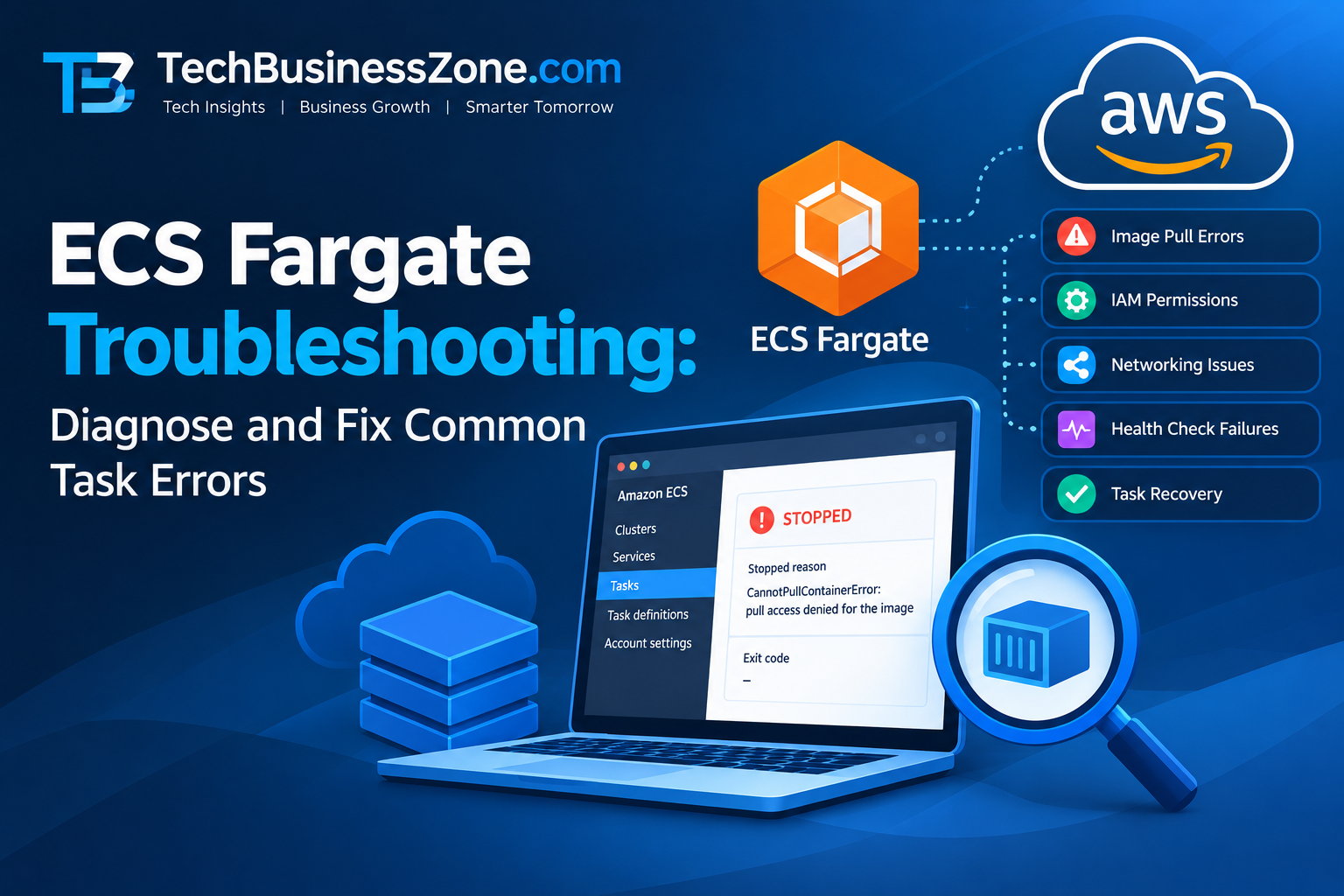
ECS Fargate Troubleshooting: Diagnose and Fix Common Task Errors
Amazon ECS on AWS Fargate lets you run containers without managing the underlying server infrastructure. However, tasks can still fail to start, remain in the PENDING state, exit unexpectedly, fail health checks, or lose connectivity to application dependencies. Effective ECS Fargate troubleshooting starts with the evidence AWS already provides: service events, stopped-task details, container exit codes, CloudWatch logs, IAM permissions, and network configuration.
Checking these sources in the right order is usually more productive than repeatedly restarting tasks or changing several settings at once.
This guide explains how to diagnose common Fargate failures, run targeted AWS CLI commands, identify likely root causes, and verify whether a fix works.
Quick ECS Fargate Troubleshooting Checklist
Before changing your task definition or redeploying a service, work through these checks:
- Inspect ECS service events to identify scheduling, deployment, or health-check failures.
- Review the stopped task’s details, including
stopCode,stoppedReason, containerreason, andexitCode. - Open the container’s CloudWatch logs and inspect the last messages before the failure.
- Check image access, IAM permissions, secrets, and logging configuration if the task fails during initialization.
- Verify subnet IP availability, routes, security groups, DNS, and VPC endpoints if the task cannot reach a dependency.
- Compare health-check settings with the application’s actual behavior if the container starts but the service replaces it.
- Make one targeted change, deploy or restart as appropriate, and verify the new task reaches a stable running state.
Important: ECS task details for stopped tasks are available through the ECS API for a limited period—typically one hour. Capture the failure details promptly or configure monitoring to retain them for later investigation.
1. Understand How an ECS Fargate Task Fails
An ECS task can fail at several stages. Identifying the stage helps narrow the investigation.
| Failure stage | Typical symptom | First place to investigate |
|---|---|---|
| Task startup | Task stops shortly after launch | Stopped-task reason and container reason |
| Image retrieval | CannotPullContainerError | Image URI, registry access, execution role, network |
| Resource initialization | ResourceInitializationError | Secrets, logging, permissions, network configuration |
| Scheduling | Task remains PENDING | Service events, subnet IP availability, capacity configuration |
| Application startup | Container exits shortly after starting | Application logs, command, environment variables |
| Health checking | Running task is repeatedly replaced | Container or load-balancer health-check results |
| Runtime connectivity | Application starts but cannot reach a dependency | Routes, DNS, security groups, endpoints, IAM |
| Resource pressure | Container stops during heavy activity | Memory and CPU metrics, exit code, application logs |
These symptoms are clues, not definitive diagnoses. For example, an image-pull error can result from a missing image tag, insufficient permissions, or an inability to reach the registry. Confirm the cause before changing configuration.
2. Start with ECS Service Events
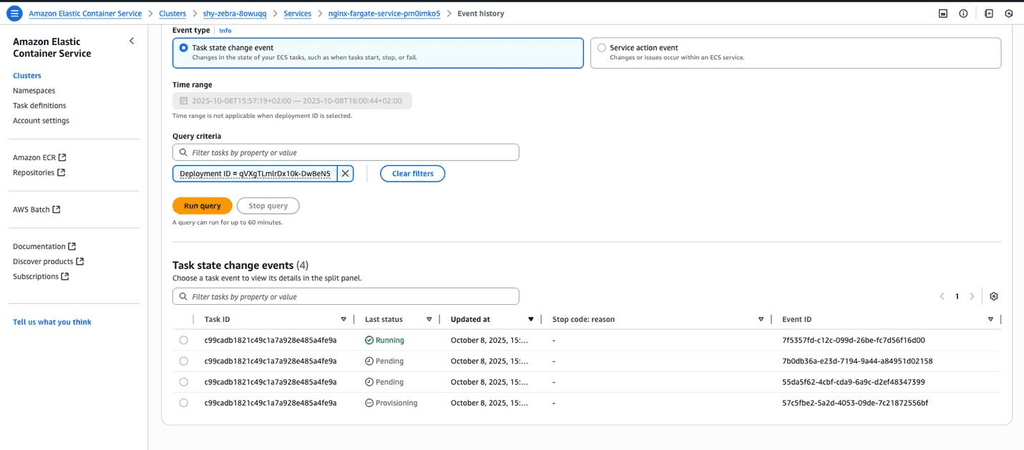
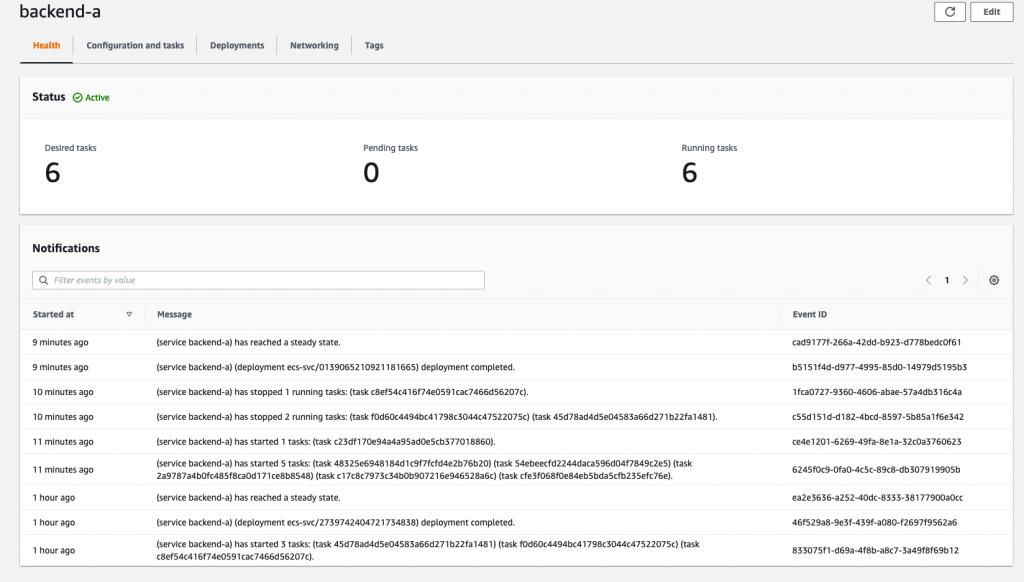
Service events often reveal the earliest useful explanation of a failure. They may identify deployment problems, health-check failures, tasks that cannot be placed, or resources that ECS cannot provision.
How to inspect service events
- Open the AWS Management Console and navigate to Amazon ECS.
- Select your cluster.
- Open the affected service.
- Find the service events or events section.
- Read the newest messages and compare their timestamps with the task failure.
Do not rely on the newest message alone. Review the sequence of events to determine what happened before ECS began replacing tasks or retrying a deployment.
Inspect events with the AWS CLI
Replace the placeholders with your actual resource names and AWS Region.
aws ecs describe-services \
  --cluster YOUR_CLUSTER \
  --services YOUR_SERVICE \
  --region YOUR_REGION \
  --query 'services[0].events[0:10].[createdAt,message]' \
  --output table
This command displays the ten most recent service events returned by the API.
Look for messages about:
- Tasks failing to start or being stopped.
- Load-balancer health checks failing.
- Tasks failing to reach a stable state.
- Insufficient subnet addresses or resource-provisioning problems.
- Deployment configuration or task-definition issues.
If the service has no useful recent events, inspect the individual task and its logs instead.
3. Inspect Stopped-Task Details
When a task stops, ECS provides details that can help distinguish an application crash from an initialization, infrastructure, or configuration failure.
Important fields include:
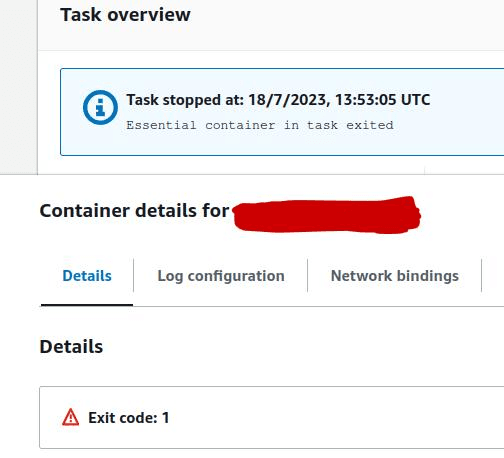
stopCode: the category of task stoppage.stoppedReason: the task-level explanation, when available.containers[].reason: the container-level explanation, when available.containers[].exitCode: the container process’s exit code, when available.lastStatus: the task or container’s most recent reported status.
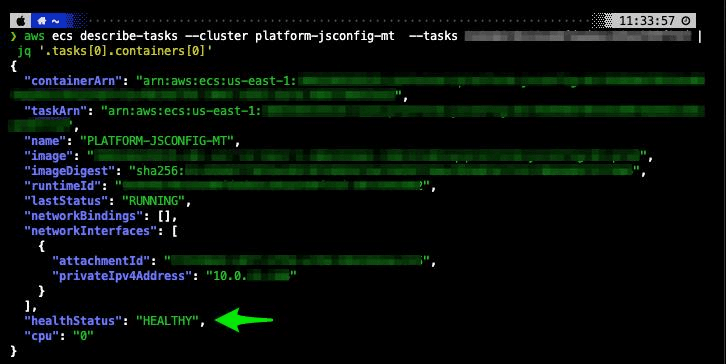
Retrieve task details
First, obtain the task ARN or task ID from the ECS console or your existing logs. Then run:
aws ecs describe-tasks \
  --cluster YOUR_CLUSTER \
  --tasks YOUR_TASK_ID \
  --region YOUR_REGION \
  --query 'tasks[0].{
    LastStatus:lastStatus,
    StopCode:stopCode,
    StoppedReason:stoppedReason,
    Containers:containers[*].{
      Name:name,
      LastStatus:lastStatus,
      ExitCode:exitCode,
      Reason:reason
    }
  }' \
  --output json
The command uses placeholders; it does not represent a real task result. The returned fields may be null or absent when they are not available for a particular task.
What to do with the result
- If the reason identifies image retrieval, investigate the registry and execution role.
- If the reason identifies resource initialization, check secrets, logging, permissions, and network access.
- If a container has an exit code, correlate it with the application logs and metrics.
- If the task-level reason is vague, inspect service events and CloudWatch logs for the same time period.
Preserve the evidence before retrying. A replacement task has a different task ID, so its details will not necessarily explain why the previous task failed.
4. Fix CannotPullContainerError
CannotPullContainerError indicates that ECS could not retrieve the container image. The cause may be an incorrect image reference, missing permissions, registry authentication, network connectivity, or an unavailable image.
Check the image reference
Open the task definition and verify the container’s image value. Confirm:
- The registry and repository are correct.
- The requested image tag or digest exists.
- The image has not been deleted or moved.
- The task definition references the intended image version.
For Amazon ECR, confirm that the image exists in the expected AWS account and Region. For an external registry, verify the repository path and authentication requirements.
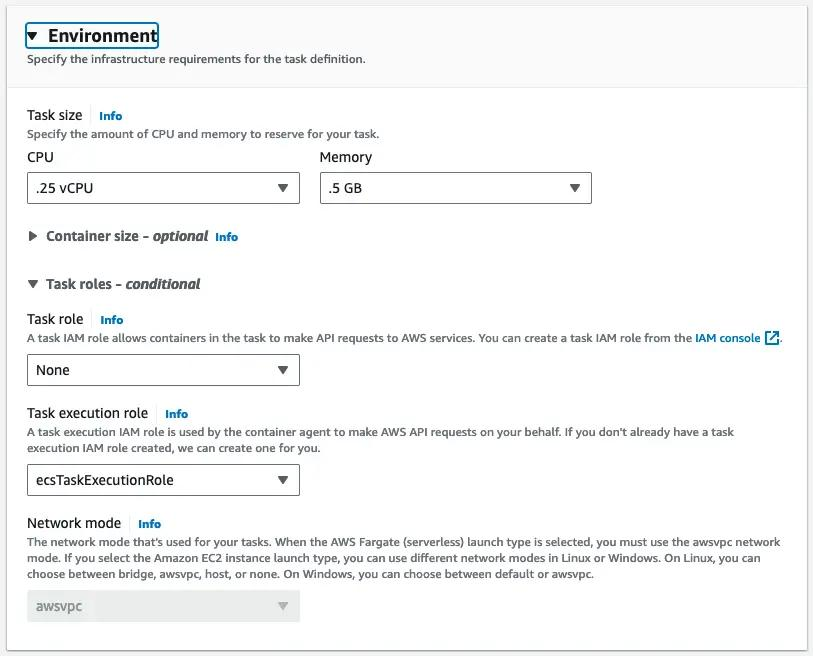
Check the task execution role
The task execution role allows the ECS agent to perform certain operations on behalf of the task, such as retrieving private images from ECR and sending container logs to CloudWatch Logs.
Review the role configured in the task definition and confirm that it has the required permissions. For private ECR images, check the required ECR authorization and image-pull permissions.
Do not confuse the execution role with the task role. The task role grants AWS permissions to application code running inside the container. An application may need an appropriate task role to access S3 or another AWS service, but that is different from the permissions used to pull its image.
Check network connectivity
If the task runs in private subnets, verify that its network configuration supports access to the image registry.
Depending on your design, this may require:
- A NAT gateway and appropriate routes for outbound internet access.
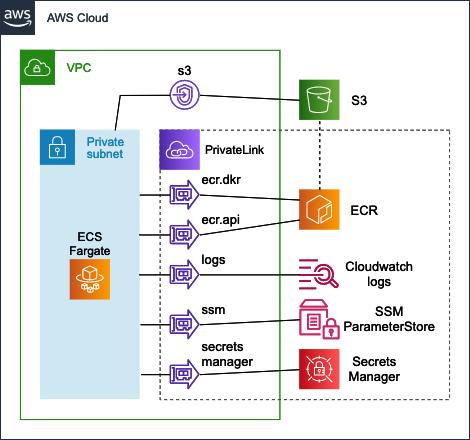
- The relevant VPC endpoints for private access to AWS services.
- Correct endpoint policies, security groups, and DNS settings.
- Working access to an external registry and its required authentication service.
A route to the internet alone does not guarantee that registry access will work. Check the specific destination and required permissions.
5. Fix ResourceInitializationError
ResourceInitializationError means that a task encountered a problem while preparing the resources it needs to start. The exact cause depends on the error details.
Common areas to inspect include:
- Secrets or parameters referenced by the task definition.
- CloudWatch Logs configuration.
- Permissions on the task execution role.
- Connectivity to AWS services.
- VPC endpoints, routes, security groups, and DNS.
- Incorrect resource names or configuration values.
Investigate secrets and parameters
If the task retrieves credentials from AWS Secrets Manager or Systems Manager Parameter Store, confirm that:
- The referenced secret or parameter exists in the expected Region.
- The task execution role has the necessary permissions.
- Any required KMS permissions are available for encrypted values.
- The task can reach the relevant service through its network configuration.
- The task definition references the correct resource.
Avoid placing secret values directly in logs, screenshots, command output, or published troubleshooting examples.
Check CloudWatch Logs configuration
If the task definition uses the awslogs log driver, verify the log group, Region, log stream prefix, and execution-role permissions.
A missing log group or incorrect logging configuration can prevent a task from initializing successfully. Use the full error message to distinguish a logging issue from a secrets or connectivity problem.
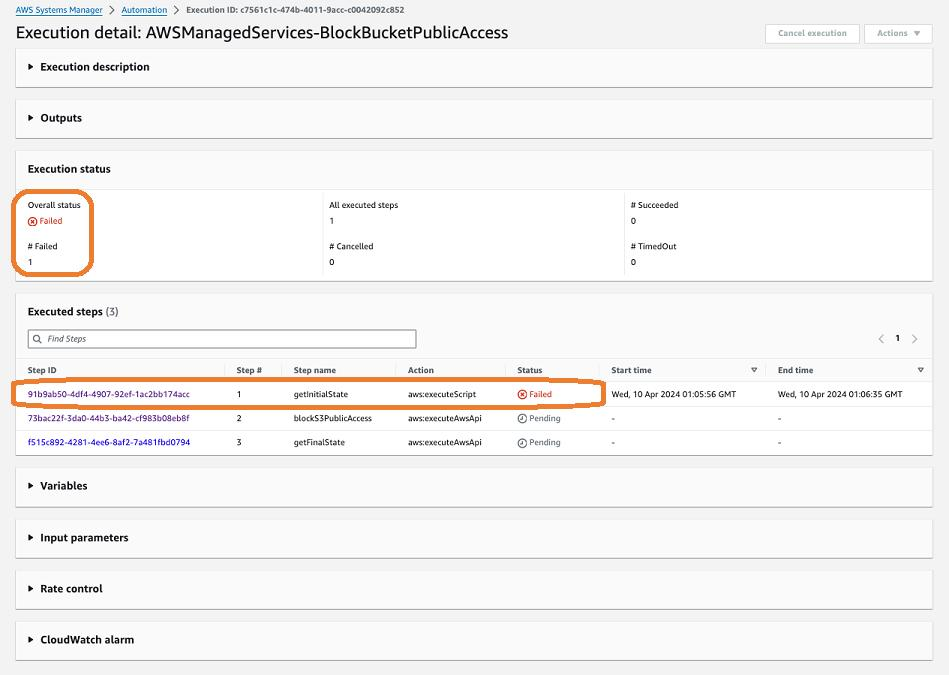
Use the AWS troubleshooting runbook
AWS Systems Manager provides the automation runbook AWSSupport-TroubleshootECSTaskFailedToStart to help diagnose common task-start failures.
Official documentation: AWS Systems Manager runbook — Troubleshoot ECS task failed to start.
The runbook can check areas such as registry connectivity, execution-role permissions, VPC endpoint connectivity, security-group configuration, Secrets Manager references, and logging configuration.
General workflow:
- Open AWS Systems Manager in the same Region as the affected resources.
- Open Automation and locate the runbook.
- Start an execution with the required cluster name and task ID.
- Review the runbook’s input requirements and permissions before executing it.
- Inspect the execution steps and results.
- Apply the fix indicated by the evidence, then verify a replacement task.
The network checks may create temporary resources, including a Lambda function and role, to test connectivity. AWS generally attempts cleanup, but inspect the runbook results and remove temporary resources manually if cleanup fails.
6. Troubleshoot Tasks Stuck in PENDING
A task in PENDING has not yet reached the RUNNING state. A short delay may be normal, but a task that remains pending requires investigation.
Start with the service events, then check:
- Whether the task definition is compatible with the service’s launch configuration.
- Whether the required subnet addresses are available.
- Whether the network configuration can be provisioned.
- Whether the service is using the intended subnets and security groups.
- Whether the task definition or deployment settings are correct.
- Whether AWS reports an internal or resource-provisioning error.
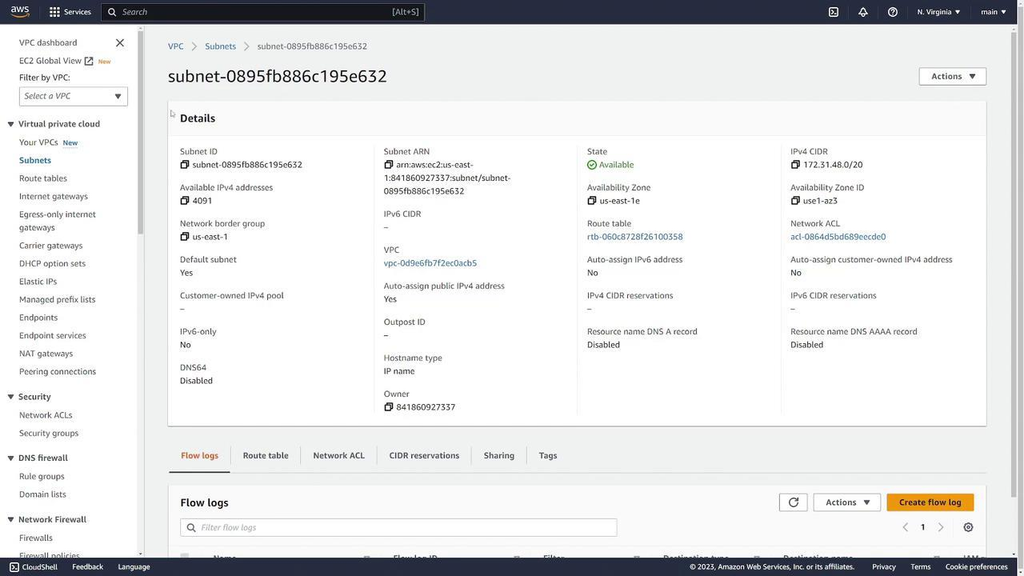
Check subnet IP availability
Fargate tasks using awsvpc networking receive an elastic network interface (ENI) and require an available private IP address in the selected subnet.
A subnet with insufficient available addresses can prevent task startup. This is particularly important when services scale out or several workloads share a small subnet.
Run:
aws ec2 describe-subnets \
  --subnet-ids subnet-XXXXXXXX \
  --region YOUR_REGION \
  --query 'Subnets[*].{
    SubnetId:SubnetId,
    AvailabilityZone:AvailabilityZone,
    AvailableIPs:AvailableIpAddressCount
  }' \
  --output table
Replace subnet-XXXXXXXX and YOUR_REGION with your actual values. For a service using multiple subnets, inspect each selected subnet.
If address availability is insufficient, consider adding appropriately sized subnets or adjusting the service’s subnet configuration. Confirm routing and security requirements before changing the network design.
Check the selected capacity configuration
Make sure the service and task definition are configured for the intended compute option. A mismatch between the requested launch type, capacity provider strategy, or task configuration can prevent the task from being placed correctly.
For documented startup-error guidance, see AWS ECS failed-to-start errors.
7. Diagnose Container Exit Codes
A container’s exit code is a clue about how its main process ended. It should be interpreted alongside the stopped reason, application logs, and resource metrics.
| Exit code or symptom | What it may indicate | What to check |
|---|---|---|
0 | The process completed successfully | Whether the container was intended to be a long-running service |
1 | A general application-level failure | Application logs, configuration, startup command |
137 | The process was terminated with signal 9 in common shell/container reporting | Memory metrics, task stop reason, shutdown behavior, platform events |
| Other nonzero code | An application or process-specific failure | Application documentation and logs |
| No exit code available | The container may not have reached normal process execution or the field may be unavailable | Task reason, container reason, initialization logs |
Why exit code 137 does not prove an out-of-memory failure
Exit code 137 is commonly associated with termination by SIGKILL, but it does not independently prove that the container exceeded its memory limit.
Memory exhaustion is one possible cause. Another possibility is that a process did not respond to a termination signal within the allowed shutdown period and was subsequently forcefully terminated.
To investigate:
- Read the task’s
stoppedReasonand containerreason. - Inspect application logs immediately before termination.
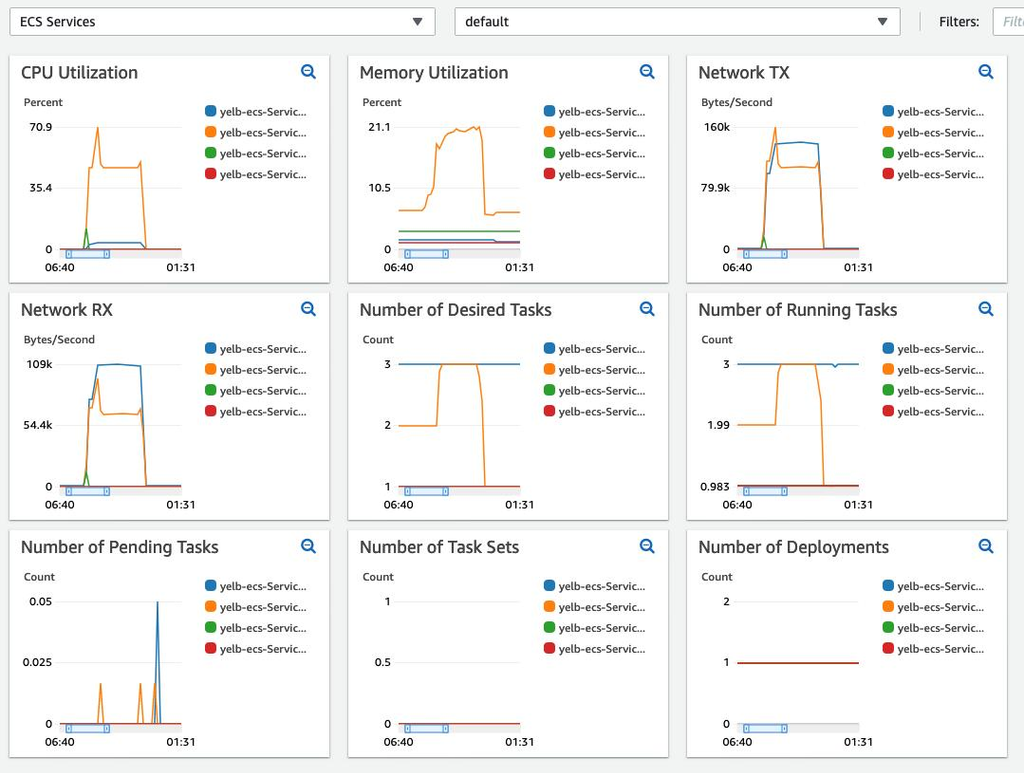
- Review CloudWatch CPU and memory metrics, where available.
- Check whether the service was deploying, scaling, or being stopped.
- Look for platform events or other evidence that explains the termination.
If the evidence points to memory pressure, review the task’s memory configuration and workload usage. Increase memory only after checking whether the application has a leak, an unexpected workload spike, or an inefficient operation.
8. Troubleshoot Failed Container Health Checks
A container can start successfully and still fail its health check. ECS may then stop or replace the task, depending on the service and deployment configuration.
Health-check problems often involve:
- The application taking longer to initialize than expected.
- An incorrect health-check command or URL.
- A wrong port or path.
- The application listening only on
localhostwhen it needs to accept traffic on the container interface. - Missing dependencies that prevent the application from becoming healthy.
- CPU or memory pressure that delays responses.
- Incorrect load-balancer target-group configuration.
Inspect the container health check
Review the task definition’s health-check settings:
commandintervaltimeoutretriesstartPeriod
The command must accurately test the application’s health. For example, a health check that calls curl will fail if the container image does not include curl, even if the application itself is functioning.
A startPeriod can allow a slow-starting application additional time before failures count against its health status. It is not a substitute for fixing an incorrect command or a service that never becomes ready.
Check load-balancer health separately
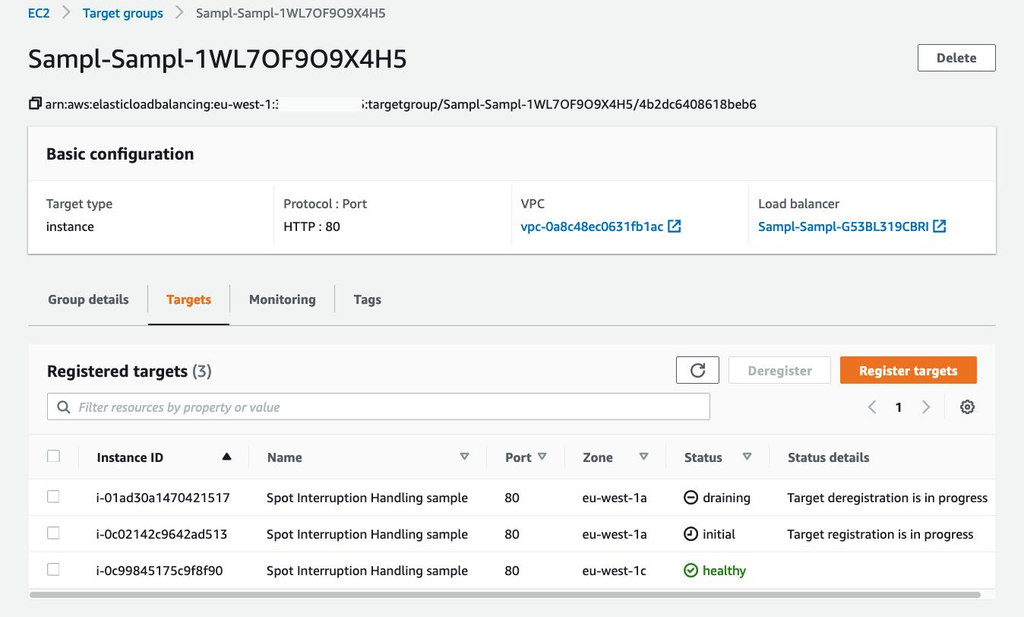
If the service uses an Application Load Balancer or Network Load Balancer, distinguish ECS container health from load-balancer target health.
For an Application Load Balancer, verify:
- The target group points to the correct container port.
- The health-check path and success codes match the application.
- The security group allows the relevant traffic.
- The application listens on the expected interface and port.
- The load balancer can reach the task through the configured network.
For an Application Load Balancer, a health-check failure may appear as an HTTP status-code mismatch or a request timeout. The exact reason should be confirmed in the target-health details.
9. Troubleshoot Fargate Networking and Connectivity
A task may reach RUNNING but still fail because the application cannot connect to a database, API, registry, secret store, or other dependency.
Fargate networking uses the task’s configured network interfaces. Troubleshooting therefore requires checking the path between the task and the destination—not simply restarting the container.
Check security groups
For each connection, confirm:
- The task security group’s outbound rules permit the required destination and port.
- The destination’s security group permits inbound traffic from the task security group or another intended source.
- The rules are narrow enough to meet your security requirements.
- The correct security groups are attached to the task’s network configuration.
Security groups are stateful, but both the source and destination rules must still permit the intended connection.
Check routes and subnet design
For tasks in private subnets, determine how they reach each dependency.
Depending on the architecture, connectivity may rely on:
- A NAT gateway for outbound internet access.
- An internet gateway for resources designed for public access.
- VPC endpoints for private access to supported AWS services.
- VPC peering, Transit Gateway, or another configured network path for private destinations.
A public IP address is not a universal requirement for Fargate tasks. Whether a task can reach a destination depends on its subnet, routes, security groups, DNS, and the destination’s accessibility.
Check VPC endpoints and DNS
If your design uses VPC endpoints, verify that the necessary endpoint exists and that its security group, endpoint policy, and DNS settings are correct.
For custom DNS configurations, check whether DNS requests can reach the configured resolver. Network ACLs, where used, must also permit the necessary inbound and outbound traffic.
Use the destination’s actual hostname and port to test connectivity wherever possible. A successful connection to one AWS service does not prove that every required service is reachable.
See the official AWS ECS connectivity troubleshooting guide.
10. Use ECS Exec to Investigate a Running Container
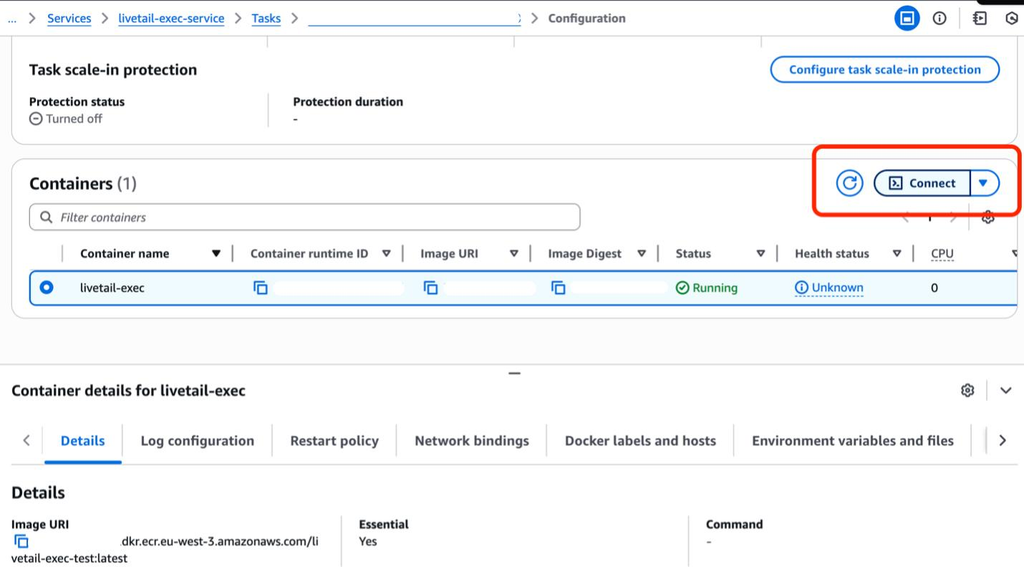
Amazon ECS Exec can help you inspect a supported running container without building a separate debugging image. It is useful when logs alone cannot explain an application’s runtime behavior.
Before using ECS Exec, confirm that the feature is enabled and that the required IAM and Systems Manager connectivity requirements are satisfied. Your permissions, task configuration, and network design must support the operation.
A typical command is:
aws ecs execute-command \
  --cluster YOUR_CLUSTER \
  --task YOUR_TASK_ID \
  --container YOUR_CONTAINER_NAME \
  --interactive \
  --command "/bin/sh" \
  --region YOUR_REGION
This example assumes the container has /bin/sh. Minimal or distroless images may not include a shell or common debugging utilities.
Use ECS Exec to investigate specific questions, such as:
- Are the expected environment variables present? Avoid printing secret values.
- Is the application listening on the expected port?
- Can the container resolve the required hostname?
- Is a required configuration file present?
- Does the application process exist and appear healthy?
ECS Exec is not a way to enter a container that has already stopped. For stopped tasks, rely on the retained task details and logs.
11. Investigate Fargate Spot Interruptions and Task Retirement
Unexpected task stops are not always application failures.
Fargate Spot interruptions
If a service uses Fargate Spot, tasks can be interrupted when AWS reclaims capacity. Review the task’s stop reason and relevant events before treating the interruption as an application crash.
For interruption-tolerant services:
- Handle termination signals gracefully.
- Allow sufficient time to close connections and finish or safely abandon work.
- Make background jobs retryable and idempotent where appropriate.
- Use a service configuration that maintains suitable capacity during replacement.
- Monitor interruption and replacement events.
Do not assume that every task stop in a Spot-enabled service was caused by Spot. Confirm the stop reason.
Task retirement or platform events
AWS may also stop or replace tasks as part of infrastructure maintenance or other platform events. Check the task details and AWS Health notifications when the application logs do not explain the failure.
For additional stopped-task guidance, see AWS: Troubleshoot stopped ECS tasks.
12. Troubleshoot Deployment Failures and Repeated Replacements
If new tasks start but the service never stabilizes, investigate the deployment and health-check sequence.
Review:
- The active and previous task-definition revisions.
- Recent service events.
- The health status of new tasks.
- Load-balancer target health, where applicable.
- Whether the application can start with the new environment variables, secrets, ports, and configuration.
- Whether the service’s deployment settings allow sufficient healthy capacity during replacement.
A deployment can fail even when the container image is valid. For example, a new revision might introduce a missing secret, a changed port, a startup dependency, or a health-check path that does not exist.
Compare the failing revision with the last known working revision. Change one relevant setting at a time, and use a controlled rollback when the evidence supports it and your deployment process permits it.
Avoid repeatedly forcing deployments without addressing the underlying failure. That can produce more stopped tasks while making the original evidence harder to find.
13. Use This Troubleshooting Decision Table
The table below maps common symptoms to the next useful investigation. The “likely area” is a starting point, not a guaranteed root cause.
| Symptom or error | First investigation | Common areas to verify |
|---|---|---|
CannotPullContainerError | Task reason and image reference | Registry, image tag, execution-role permissions, network access |
ResourceInitializationError | Full initialization error | Secrets, logging, IAM, DNS, endpoints, security groups |
Task remains PENDING | ECS service events | Subnet IP addresses, provisioning, capacity configuration |
Container exits with code 1 | Application logs | Startup command, configuration, application exception |
Container exits with code 137 | Stop reason, logs, metrics | Memory pressure, termination behavior, other stop events |
| Container health check fails | Health-check result | Command, path, port, startup time, dependencies |
| Load-balancer target is unhealthy | Target-health reason | Target port, security groups, health-check path, application response |
| Task cannot reach an AWS service | Connection error and network path | VPC endpoint, routes, DNS, security groups, IAM |
| ECS Exec fails | ECS Exec error details | Feature configuration, permissions, Systems Manager connectivity |
| Task stops unexpectedly | stopCode, stoppedReason, events | Deployment, Spot interruption, retirement, application failure |
14. A Practical Troubleshooting Workflow
Use this sequence when investigating a real ECS Fargate incident.
Step 1: Record the failure
Capture the cluster, service, task ID, Region, approximate failure time, task-definition revision, and exact error message.
Step 2: Inspect service events
Find the earliest event that corresponds to the failure. Record its timestamp and wording.
Step 3: Retrieve stopped-task details
Run describe-tasks before the stopped-task details expire. Save the relevant fields securely.
Step 4: Check application and platform logs
Open the correct CloudWatch log group and stream. Review the final messages before termination, allowing for possible differences between log timestamps and event timestamps.
Step 5: Follow the evidence
- Image-pull problem: inspect the image and execution role.
- Initialization problem: inspect secrets, logging, permissions, and network access.
- Placement or provisioning problem: inspect service events, subnet addresses, and task configuration.
- Application exit: inspect the command, configuration, logs, and exit code.
- Health failure: inspect container health and load-balancer target health separately.
- Runtime connectivity: trace the path to the specific destination.
Step 6: Make one targeted change
Record the original setting, make the change, and avoid altering unrelated components at the same time.
Step 7: Verify the outcome
Confirm that the replacement task reaches RUNNING, health checks pass, application logs show normal startup, and the service remains stable. Test the affected application function—not just the task status.
Step 8: Preserve the evidence
For recurring problems, retain task-stop details and relevant events through an appropriate logging or monitoring workflow. This is especially important because stopped-task information is not available indefinitely.
15. Prevent Recurring ECS Fargate Failures
After resolving the immediate incident, reduce the chance of a repeat.
Improve observability
- Send application logs to a configured log destination.
- Monitor task stops, service events, deployment health, and application errors.
- Review available CPU and memory metrics.
- Preserve useful stopped-task information for incidents that may be investigated later.
- Alert on repeated restarts or unhealthy deployments where appropriate.
Review task definitions
- Pin image versions or digests where suitable for your release process.
- Verify container ports, commands, environment variables, and health checks.
- Confirm the execution role and task role have the correct, separate permissions.
- Check secret references and logging configuration before deployment.
Design for failure
- Make health checks reflect genuine application readiness.
- Ensure applications handle termination signals appropriately.
- Use retry strategies for transient dependency failures.
- Make background processing safe to retry when a task is interrupted.
- Plan subnet capacity for expected scaling.
- Test the deployment and rollback process before relying on it during an incident.
Document recurring errors
Maintain a short incident record containing the symptom, confirmed cause, evidence, fix, verification result, and preventive action. A diagnosis should be considered confirmed only when the evidence supports it and the fix produces the expected result.
16. Real-World Incident Walkthrough: How to Document a Fargate Failure
A useful troubleshooting article should distinguish a documented AWS example from a production incident that was actually observed. The following is a case-study template, not a claim that a particular production incident occurred.
ECS Fargate Troubleshooting Case Study: Diagnosing and Fixing a Container Image Pull Failure
An ECS Fargate task can fail before the application starts if Amazon ECS cannot retrieve the container image. The error may involve an incorrect image reference, missing registry permissions, authentication problems, or network connectivity.
This illustrative case study demonstrates how to investigate a CannotPullContainerError, identify the relevant evidence, apply a targeted correction, and verify the result. The example uses a private Amazon Elastic Container Registry (Amazon ECR) image. Actual error output and recovery results will vary by environment.
Incident
An Amazon ECS service attempts to launch a Fargate task, but the task stops before the application starts. The container image cannot be retrieved, and ECS reports a CannotPullContainerError.
Example error message:
CannotPullContainerError:
pull access denied for the specified container image
This is an illustrative error message, not captured output from a live AWS account. The exact wording depends on the registry and failure condition.
Environment
The example uses the following architecture:
| Component | Configuration |
|---|---|
| Container platform | Amazon ECS |
| Compute option | AWS Fargate |
| Image registry | Amazon ECR private repository |
| Task definition | ECS task definition referencing an ECR image |
| IAM configuration | Task execution role used for image retrieval |
| Network configuration | VPC subnets and security groups assigned to the task |
| Logging | Amazon CloudWatch Logs, if configured |
| Failure stage | Container image retrieval before application startup |
The AWS Region, platform version, account ID, task ID, and repository name are intentionally not specified because they depend on the deployment being investigated.
Initial Evidence
The first step is to retrieve the failed task’s details before they are no longer available through the ECS API.
Run:
aws ecs describe-tasks \
  --cluster YOUR_CLUSTER \
  --tasks YOUR_TASK_ID \
  --region YOUR_REGION \
  --query 'tasks[0].{
    LastStatus:lastStatus,
    StopCode:stopCode,
    StoppedReason:stoppedReason,
    Containers:containers[*].{
      Name:name,
      LastStatus:lastStatus,
      ExitCode:exitCode,
      Reason:reason
    }
  }' \
  --output json
Replace the three placeholders with your actual cluster name, task ID, and AWS Region.
For this example, the diagnostic evidence to look for is:
- Task status:
STOPPED - Stop code: A value consistent with a task startup failure, if returned
- Stopped reason: A message identifying an image-pull failure
- Container reason: A more specific registry, authorization, or image-reference error, if available
These are expected diagnostic clues, not asserted results from an executed command.
Next, inspect the ECS service events:
aws ecs describe-services \
  --cluster YOUR_CLUSTER \
  --services YOUR_SERVICE \
  --region YOUR_REGION \
  --query 'services[0].events[0:10].[createdAt,message]' \
  --output table
Look for events that correspond to the failed task’s timestamp. Service events can help establish whether the task failed during image retrieval, deployment, or another startup stage.
Investigation
The troubleshooting process should isolate the failure before changing the task definition or redeploying the service.
1. Verify the container image reference
Open the task definition in the Amazon ECS console and inspect the container’s image URI.
Confirm that:
- The registry account and Region are correct.
- The ECR repository exists.
- The requested tag or image digest exists.
- The task definition references the intended image.
- The image has not been deleted or replaced.
An incorrect repository or missing tag can prevent ECS from retrieving the image even when the task’s IAM permissions are correct.
2. Review the task execution role
For private ECR images, the task execution role must have the permissions required for image retrieval.
Inspect the task definition’s execution role, not just its task role. The execution role supports operations performed by ECS on behalf of the task, while the task role supplies AWS permissions to application code running inside the container.
Check the role’s attached policies and any applicable permission boundaries or organization-level restrictions. Confirm that the required ECR actions are permitted.
Do not grant broad administrator permissions as a troubleshooting shortcut. Correct only the permissions that the evidence shows are missing.
3. Check the network path
If the image reference and permissions are correct, investigate connectivity.
For tasks using private subnets, verify that the network design permits access to the required ECR endpoints and image layers. Depending on the architecture, this may involve appropriate VPC endpoints or a NAT gateway, correct DNS settings, route tables, security groups, and endpoint policies.
A task can have valid IAM permissions and still fail to pull an image if the required network path is unavailable.
4. Review logging and related startup errors
If the error indicates that initialization failed rather than image retrieval, investigate the exact ResourceInitializationError details instead. Secret retrieval, logging configuration, IAM permissions, and connectivity can produce different startup failures.
Do not treat every task startup error as an ECR authorization problem.
Confirmed Cause
The root cause must be established from the actual error details and configuration.
For this illustrative scenario, assume the investigation confirms that the task definition references an incorrect image tag. This is a hypothetical example of how a verified diagnosis would be documented—not a claim about an actual AWS incident.
An incorrect tag can prevent the container image from being retrieved even when the repository exists and the required permissions are available.
Fix Applied
For the hypothetical incorrect-tag scenario, the corrective action is to update the task definition to reference the intended, existing image tag or digest.
The correction should be limited to the image reference if that is the confirmed cause. If the evidence instead identifies missing IAM permissions or network connectivity, the fix must address that specific problem.
After registering the corrected task-definition revision, update the ECS service to use it through the deployment process appropriate for the environment.
Avoid changing the image reference, IAM policies, subnet configuration, and security groups simultaneously. Multiple unrelated changes make it harder to determine which correction resolved the problem.
Verification
After deploying the corrected task definition, verify the replacement task and application.
Check the task status:
aws ecs describe-tasks \
  --cluster YOUR_CLUSTER \
  --tasks YOUR_NEW_TASK_ID \
  --region YOUR_REGION \
  --query 'tasks[0].{
    LastStatus:lastStatus,
    StopCode:stopCode,
    StoppedReason:stoppedReason,
    Containers:containers[*].{
      Name:name,
      LastStatus:lastStatus,
      ExitCode:exitCode,
      Reason:reason
    }
  }' \
  --output json
Then confirm that:
- The task reaches
RUNNING. - The container starts without the original image-pull error.
- The container health check passes, if configured.
- The load-balancer target becomes healthy, if the service uses a load balancer.
- The application responds correctly to a relevant functional test.
- The ECS service remains stable rather than repeatedly stopping and replacing tasks.
A RUNNING status alone does not prove that the application is healthy. Confirm the relevant health checks and application behavior before declaring the incident resolved.
Because this case study is illustrative, no successful recovery result is claimed here.
Preventive Actions
To reduce the risk of similar failures:
- Validate container image references before deploying a new task-definition revision.
- Use immutable image digests where appropriate for the release process.
- Verify that the task execution role has the required least-privilege permissions.
- Check ECR connectivity and endpoint configuration when using private subnets.
- Monitor ECS service events and repeated task-start failures.
- Retain relevant logs and task-stop evidence for incident investigations.
- Include image availability and task startup checks in the deployment process.
- Document the error, confirmed cause, correction, and verification result for each real incident.
Key Takeaway
Effective ECS Fargate troubleshooting begins with the task’s actual failure evidence. A CannotPullContainerError can point to an image-reference problem, missing permissions, registry authentication, or network connectivity, so the exact cause must be verified before applying a fix.
Inspect the stopped-task details and ECS service events, validate the image and execution role, and check network access where necessary. After correcting the identified problem, confirm that the replacement task starts, passes its health checks, and serves the application as expected.
Frequently Asked Questions about ECS Fargate troubleshooting
Why does my ECS Fargate task stop immediately after starting?
Inspect the stopped-task details, container reason, exit code, and application logs. Common possibilities include an invalid startup command, missing configuration, application exceptions, failed initialization, or an unavailable dependency. The evidence should determine the next step.
How do I troubleshoot CannotPullContainerError in ECS Fargate?
Verify the image repository and tag, confirm the image exists, inspect the task execution role’s permissions, and test the network path to the registry. For private ECR images, check the required ECR permissions and connectivity.
What causes ResourceInitializationError?
Possible causes include inaccessible secrets, missing permissions, logging configuration problems, and connectivity failures. Use the complete error message to narrow the cause and consider the AWS Systems Manager AWSSupport-TroubleshootECSTaskFailedToStart runbook.
Why is my Fargate task stuck in PENDING?
Check ECS service events first. Then investigate subnet IP availability, task provisioning, network configuration, and compatibility between the service’s compute configuration and the task definition.
Does exit code 137 always mean the container ran out of memory?
No. Exit code 137 commonly indicates termination with signal 9, but it does not prove that an out-of-memory event occurred. Check the task stop reason, container logs, available metrics, and termination events before deciding.
Why does my ECS service keep replacing healthy-looking tasks?
The task may appear to start correctly but fail a container or load-balancer health check. Check the health-check command, startup timing, port, path, application readiness, and load-balancer target-health reason.
Can I troubleshoot a stopped task with ECS Exec?
ECS Exec is intended for supported running containers. For stopped tasks, use describe-tasks, service events, CloudWatch logs, and retained monitoring data.
How long can I inspect a stopped ECS task?
AWS documents that stopped-task details are available through the ECS API for approximately one hour. Capture the details promptly and establish an appropriate retention workflow if you need to investigate incidents later.
Conclusion
Reliable ECS Fargate troubleshooting depends on following the evidence from the first failure signal to the underlying cause. Start with service events and stopped-task details, then investigate the relevant layer: image retrieval, initialization, IAM, networking, application behavior, or health checks.
Make targeted changes and verify the result with a replacement task and the application’s actual health. For recurring failures, preserve task-stop details and improve monitoring so that the next investigation starts with useful evidence rather than guesswork.